

Long-form posts are often more engaging, but if they’re not formatted correctly, you could lose readers instead. Readers love jumping to the most useful sections, which is why you need to add a table of contents (TOC) to your posts.
Benefits of Having a Table of Contents
At first, it might just seem like one more thing to do when writing a post in WordPress, but a TOC is just as important for the reader experience as the content itself.
Readers probably aren’t going to read every single word in your post. Instead, they scan. Headers make a huge difference, but instead of trying to endlessly scroll to find the heading they need, a table of contents lets them quickly jump to the right section. It puts the readers’ needs first, which keeps them on your site longer.
Longer posts might seem daunting when a reader is only looking for a specific piece of information. Instead of seeing a lengthy wall of text and jumping to another site, a TOC lets them see every section at a glance and click straight through to what they need.
You likely already know navigation is critical for keeping users on your site longer. Treat your content the same way. Make it easy to navigate by adding a table of contents, and readers spend more time on your site.
An often overlooked benefit is SEO (search engine optimization). Google and other search engines read the headers and anchor links used to create a TOC. This gives search engines an idea of what your content is about. Sometimes, the TOC is even used to create jump links in the search results.
The benefits make it worth the extra effort. Plus, your content looks nicer overall.
Add a Table of Contents Manually
If you’re trying to cut back on how many WordPre-table-of-contents-ss plugins you use, you can add a TOC to WordPress manually. It requires a few extra steps and you have to be careful to spell things correctly and update your anchor links anytime you change a heading. However, it’s one of the easier manual tasks to do in WordPress.
Let’s break it down into three simple steps.
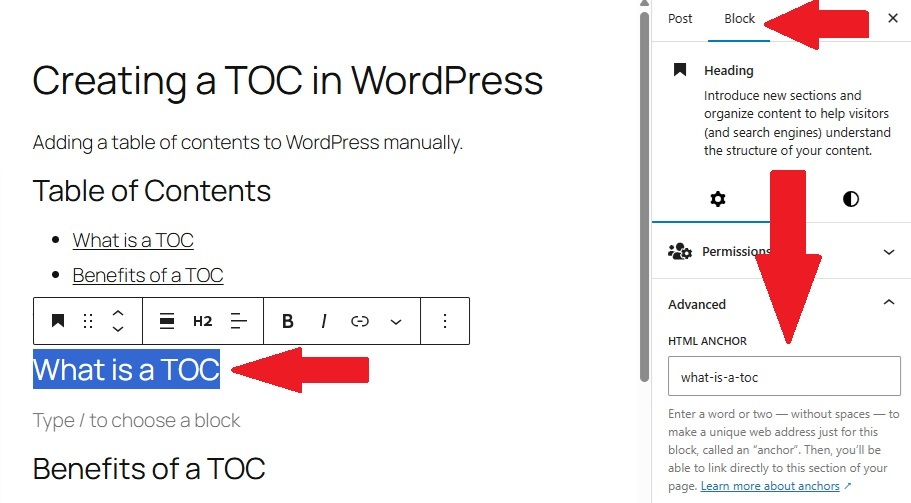
- Use H2 or H3 headers for each section you want in your table of contents. Using headers is good for SEO even without a TOC. Just highlight the section heading and switch to “header” versus “paragraph” format.
- Ensure the cursor is still within the header, open the Block settings pane, and expand Advanced. In the HTML Anchor box, enter the name of the section with a dash between each word, such as this-is-my-heading-name. Don’t use spaces.
- At the beginning or just after your intro, add a new section. You can label it as TOC or Table of Contents if you want. Add a list with each section name. Highlight a section, select the Link option, and enter the exact name you used in the HTML Anchor box. Just add a hashtag before the name. For instance, the link would be #this-is-my-heading-name. This tells WordPress to create an internal link based on the HTML anchor.
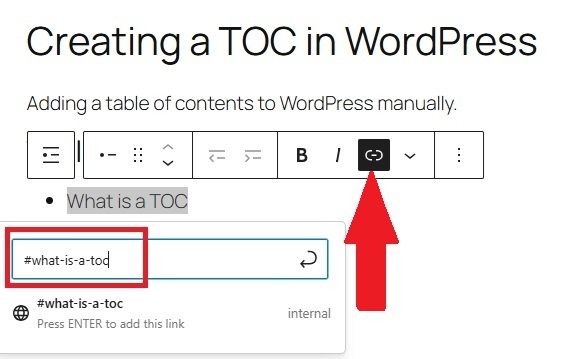
If you ever change the HTML anchor text, you must update the links in your TOC. Otherwise, it won’t link properly.
Use a Plugin to Add a TOC
WordPress plugins make life so much easier. Just like with any task, there are numerous options to choose from. Some of the easiest ones to use to automatically add a table of contents in WordPress include:
- Easy Table of Contents – As one of the most popular options, it’s a simple, yet effective plugin to auto-generate a TOC based on your headers. It comes with a variety of customization options, but simply installing and choosing whether to use a TOC on pages, posts, or both is all you have to do to get started.
- LuckyWP Table of Contents – This works much like Easy Table of Contents. Choose your default position, along with other customizations, and you’re all set. It’s already optimized for Google snippets.
- SimpleTOC – If you want a no-configuration option, try SimpleTOC. While it offers some customization, just adding the SimpleTOC block in your post auto-generates the contents based on your headings.
- Heroic Table of Contents – Quickly customize your table of contents with four pre-set styles. Just like the other options, it auto-generates TOC links. You can even add multiple tables of contents for extremely long posts.
Simplify the Process with Admin Optimizer
Admin Optimizer is an all-in-one WordPress plugin for content management, utilities, media management, security, and more. It also has a handy feature called Auto add anchor target to Headings block. This autofills the HTML Anchor box in the Block settings with the correct text for your heading.
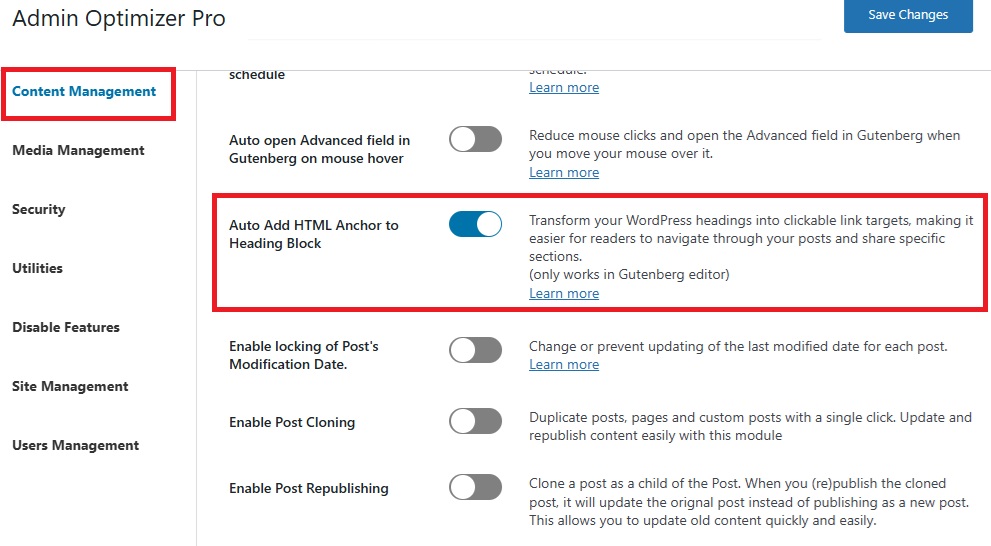
By using this, you reduce the chances of mistyping anything in the manual method. It also works alongside other TOC plugins to ensure the anchor text is always up-to-date.
No matter which method you prefer, just make sure you add a table of contents to your post. Your readers will appreciate it.
