

Managing your WordPress database is a task you know you need to do, but it often gets ignored. Or, site owners dive in and just start randomly deleting things, leading to a broken site. Instead, clean up your WordPress database the right way, and you’ll give your site a major performance boost.
Understanding the WordPress Database Structure
WordPress bloat hides throughout your database. One of the first steps to maintaining a clean, stable database is understanding the overall WordPress database structure. This helps you to know where excess is hiding and what’s safe to clean, along with what you should definitely leave alone.
The core database uses either a MySQL or MariaDB database with some standard tables, including:
- wp_posts – This includes all your pages, posts, and any custom post types you’ve created.
- wp_postmeta – All your metadata for post lives here. It’s also a great hiding place for database bloat.
- wp_comments – Comments users leave on your site.
- wp_commentmeta – Any metadata from comments gets stored here.
- wp_users – A table filled with your user accounts.
- wp_usermeta – Any related user data calls this table home.
- wp_options – This contains all your site settings, cron jobs, plugin data, etc.
- wp_terms (related databases include wp_termmeta, wp_term_relationships, and wp_term_taxonomy) – These contain all your tags, categories, and custom taxonomies.
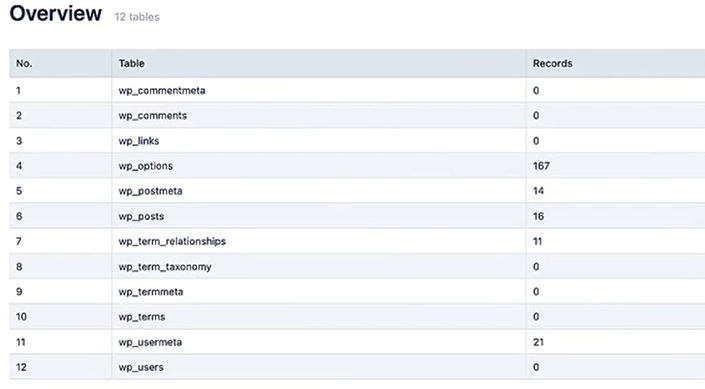
At first, that might not seem like too much. But, take a moment to think about how many plugins you have installed. Each plugin and theme creates its own tables. In some cases, multiple tables. As you can see, your database grows quickly and some of the data doesn’t need to stay there long term.
What Causes Bloat in the WordPress Database?
Every single WordPress site gets bloated over time. Even if it’s just a small personal blog, junk tends to pile up. Think about it as dust. It doesn’t matter how big or small the home, dust still gathers and you have to clean regularly.
Before you clean your WordPress database, take a look at where bloat tends to occur most:
- Autosaves and post revisions – Autosave is a lifesaver and post revisions are a necessity. But, WordPress stores every single one, even after you’ve moved on to a new save point or finished post.
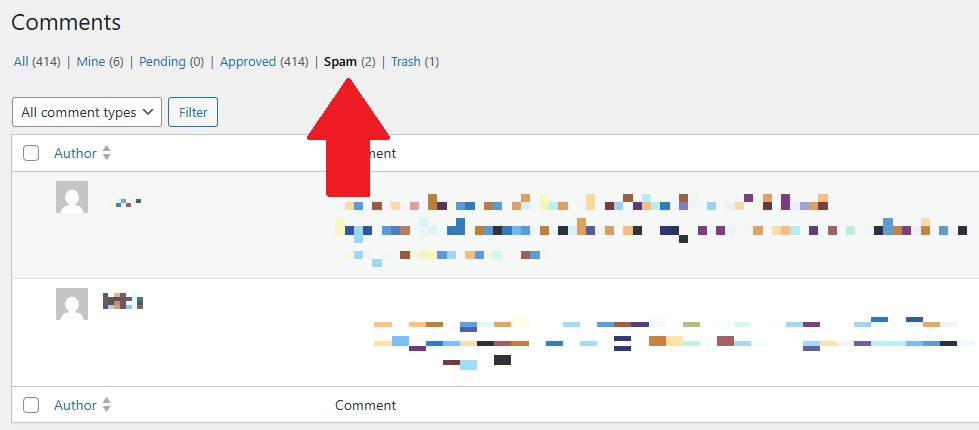
- Spam comments – Spam happens. Plugins help prevent as much as possible, but some spam comments make it through. Every time you mark a comment as spam, it’s still stored in your WordPress database.
- Orphaned post metadata – Old metadata from deleted plugins and posts tend to stick around.
- Orphaned plugin tables – Once again, deactivating or deleting a plugin doesn’t always remove everything. Tables often stick around, clogging up your database.
- Transient or temporary data – Various plugins, such as caching and ecommerce, often create and store temporary data. In an ideal scenario, this temp data expires and leaves your database. But, that’s not always the case. Instead, you get left with various sessions, logs, and other data that’s no longer of any use to you.
Obviously, things pile up faster for higher traffic sites. Just remember, every single WordPress database needs regular cleaning to avoid performance and stability issues. The only difference is the cleaning frequency might vary.
What to Take Note of When Cleaning Your Database
Unlike getting rid of a post or page you no longer need, hitting delete isn’t the solution for cleaning your database. Instead, think about what you’re deleting first. Removing the wrong data or tables could completely break your site.
The single most important rule for to clean a WordPress database is to always create a backup first. All it takes is a single mistake to destroy your site. That backup is your lifeline in case the worst happens.
The next step is never manually delete any table unless you’re 100 percent certain what it is and what else it may be tied to. Sure, an old plugin table might seem unnecessary, but it could be tied to another active plugin. Or, the table name might be deceiving and it’s actually something important.
Yes, wp_options gets bloated, but it also contains critical site settings. Please don’t just mass delete here. Your WordPress site won’t be happy and neither will you.
Also, be careful with ecommerce plugins, such as WooCommerce. Many tables are intertwined, so never assume it’s safe to haphazardly delete anything. The last thing you want to do is lose irreplaceable data about orders or user sessions.
The lesson – don’t delete unless you’re certain. Otherwise, leave it alone.
How to Clean Up the Database
Now that you know what to do, let’s walk through how to properly clean your WordPress database without any stress or worry. Still make a backup first, though.
Manually cleaning is an option, but it’s tedious and dangerous if you’re not certain about what to delete. The best option is to use a WordPress plugin for most cleaning tasks. These take care of trash, revisions, transient data, table optimization, and more. Some offer more features than others.
With Admin Optimizer, we offer a free version for basic WordPress database cleaning and a Pro version with more advanced options. The Pro options include:
- Manually running a cleanup versus auto settings
- Track orphaned options
- Check individual tables to clean up any unwanted entries
- Disable the Options table’s autoload
- Clean the Options table safely
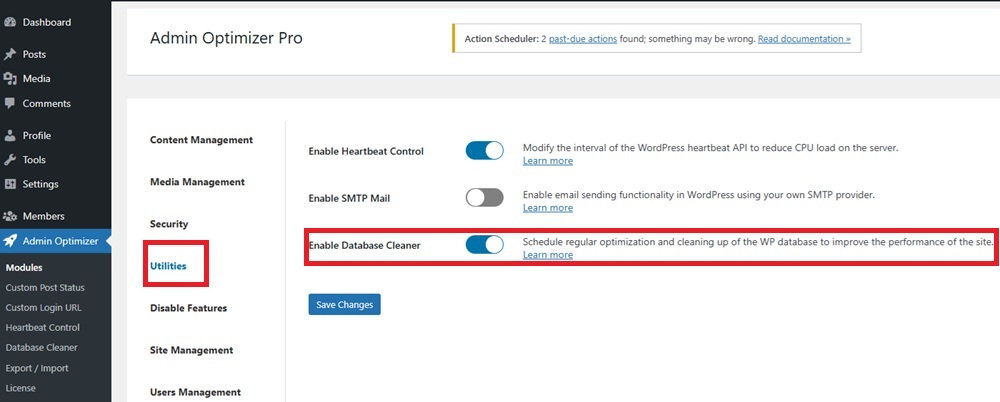
Once you’ve installed Admin Optimizer, select it from the dashboard menu, select Modules -> Utilities, and enable Database Cleaner. Click Save changes.
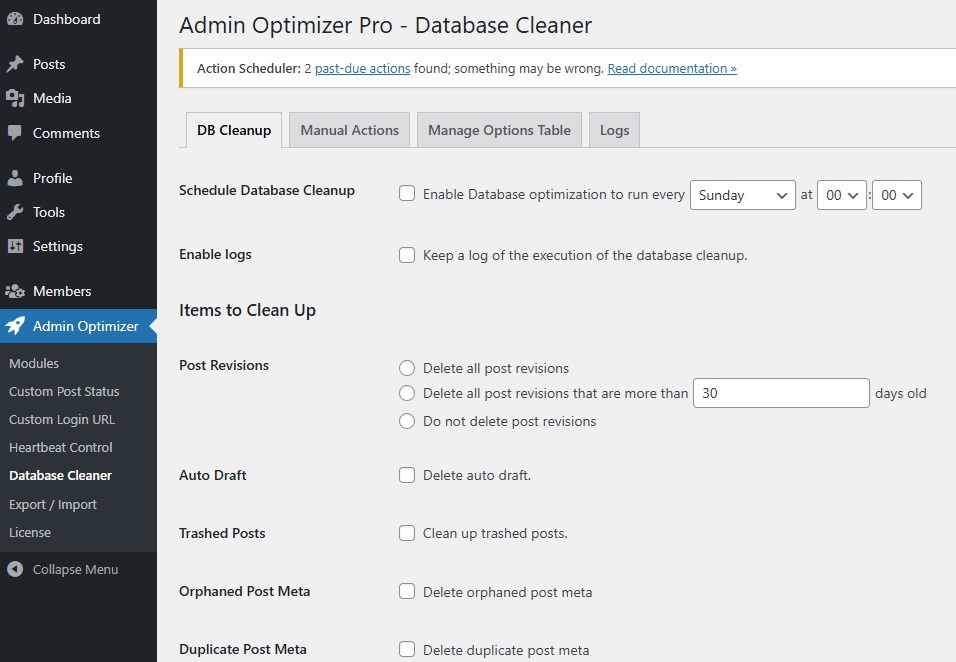
Now, open Database Cleaner under Admin Optimizer. From here, setup how and what you want to clean under the DB Cleanup tab. Nothing is scheduled or checked by default, giving you full control over the database cleanup settings.
Set your weekly schedule day and time, select items to clean up, and choose how many items to delete at once. The default number is 500, which is good for most servers. For a slower or shared server, start with 100 just to avoid any crashing.
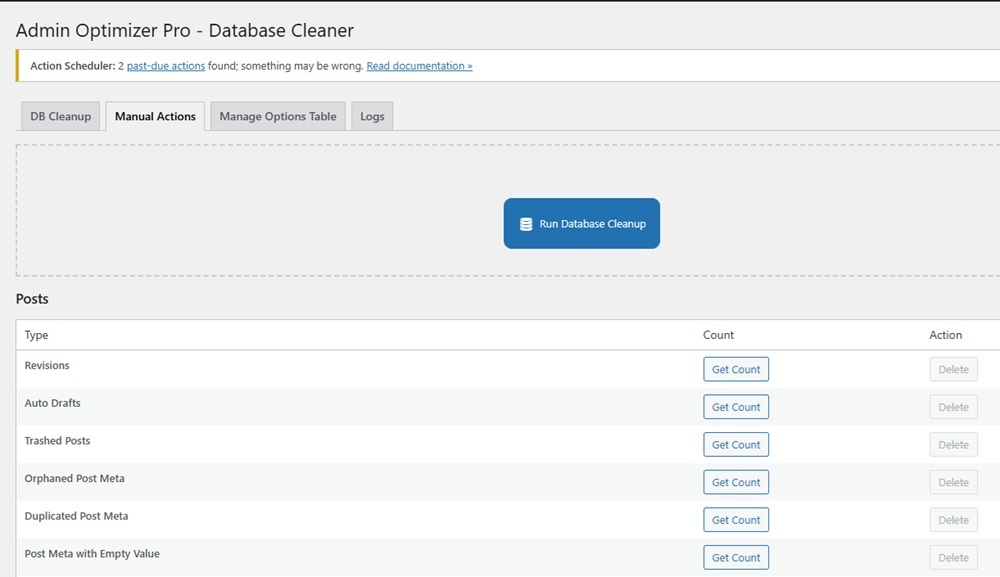
If you want a more hands-on approach without getting too technical, open the Manual Actions tab. Click Count beside any options to see how many records are in the table. Then, click Delete to remove just those items. For instance, you might remove Trashed Posts, but leave Revisions. You can also optimize your database with a single click at the bottom of the list.
You already know the Options table is one of the trickier tables to clean, but the Manage Options Table tab makes it much easier and safer. I suggest enabling Enable options tracking to see which options are being actively used so you can choose whether to disable autoload or just delete inactive options.
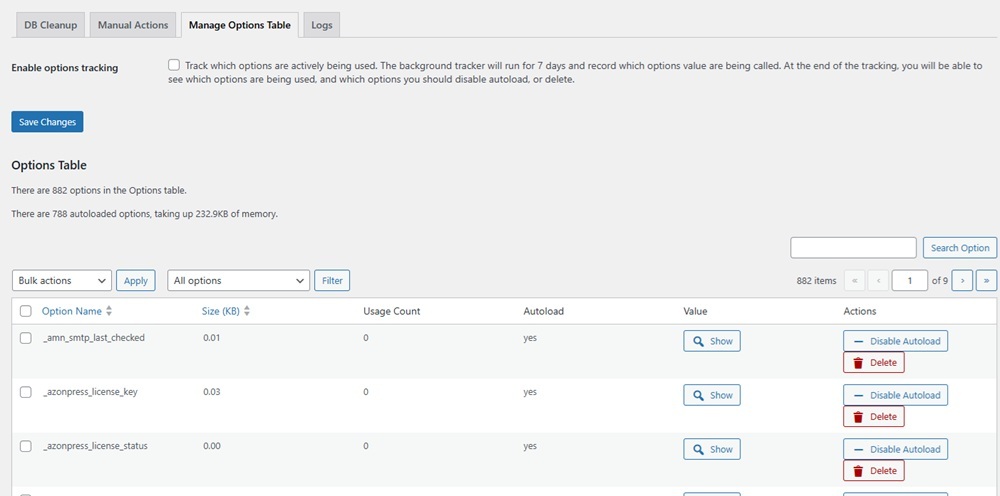
It can take a while to go through all the options here, but it’s well worth it to optimize your database performance.
If you enabled logs in the settings, the Logs tab lists all logs. Use these to see exactly what was and wasn’t deleted during a cleanup.
Even if you choose to proceed manually without a plugin, there’s a common process to follow. To access databases manually, you’ll usually use phpMyAdmin or a similar option and then view databases. Remember, back up everything before proceeding.
- Carefully review the Options table to see which options shouldn’t be autoloaded, delete any old plugin entries, and remove expired transients
- Go through your metadata and remove orphaned content
- Delete orphaned plugin tables that aren’t tied to anything else
Deep Cleaning vs. Quick Delete from Database
You don’t have to do a full, deep clean all the time. Instead, a quick delete option works best for weekly and monthly maintenance.
If you’ve never cleaned your WordPress database before, start with a deep clean. This takes care of years of orphaned metadata, abandoned plugin tables, incorrect autoload options, massive log tables, expired transient data, and more.
A deep clean does require you to manually review some items, even with a plugin. And yes, a database cleaner plugin is the safest option. Typically, you’ll want to perform a deep clean at least twice a year or even every quarter for busier sites.
For most WordPress databases, you just need a quick clean each week or month. This gets rid of revisions, trash, spam comments, transients, and similar data. It’s the equivalent of emptying your desktop recycle bin.
Whether you prefer to be completely hands-on or use a plugin, it’s vital to clean your WordPress database regularly to prevent unnecessary performance problems.
