

Improving SEO for your site means more than just creating new content, though that’s important too. Updating old content gives existing content a makeover, making it fresher and more relevant to search engines. With WordPress, you have multiple ways to tackle this task.
Updating Old Content Improves SEO
It’s easy to get caught up in just creating more and more new content without thinking twice about older posts. Yet, these posts are likely still bringing in traffic, even if that traffic declining.
Your old posts also have something your new posts don’t. They’ve already built credibility and even backlinks. So, don’t lose all the progress you’ve made by letting these posts wither away.
Take time to update old posts to:
- Change any outdated information, such as steps, sources, statistics, etc.
- Add new screenshots
- Adjust for more relevant keywords
- Improve the title, headers, and meta description
- Add extra relevant content when applicable

All of this takes existing content and turns it into something new. Search engines see sites that update content as more trustworthy since they’re maintaining content versus just churning out new pieces all the time.
Plus, visitors appreciate always having the most up-to-date information. They learn to trust your site as an authority versus leaving due to outdated content.
Update By Editing the Existing Live Post
The method for updating old content in WordPress varies based on preferences. One of the more common, yet dangerous methods, is editing the existing live post. It’s a straightforward method that doesn’t require any extra tools or plugins, which makes it more appealing.
You open the live post in the WordPress editor and start making changes. As you save your changes, they go live instantly. This also means any mistakes you make go live instantly as well. Of course, if you avoid saving your changes until you’re completely finished, you risk losing all your changes if something goes wrong before you save and publish.
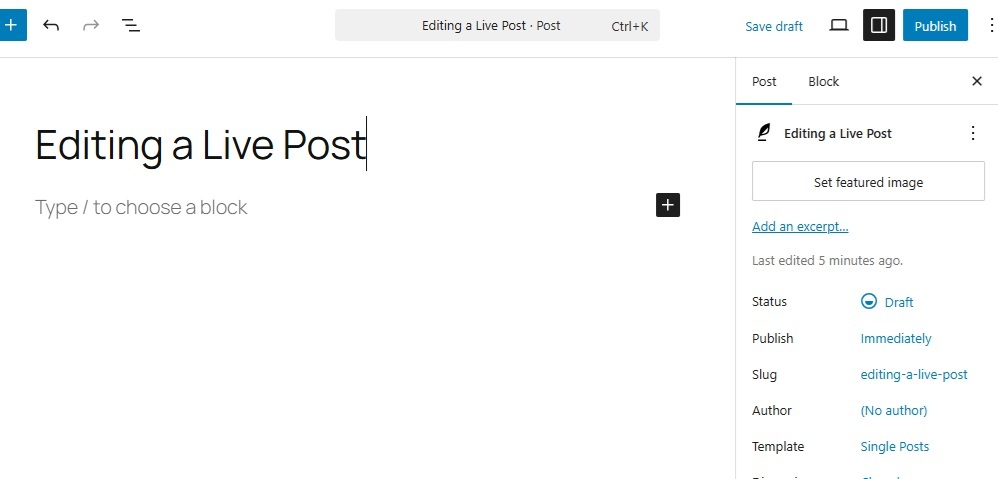
For quick edits, such as fixing typos, changing a few headings, or removing a little outdated information, live editing works great.
A good rule is if your changes take under five minutes, it’s likely safe to use this approach.
If you need longer edits, major revisions, or have multiple users working on the same site, it’s a risky move to edit live. It’s always best to leave the live post alone until the update is finished.
Create a New Draft Post for Your Update
Usually, it only takes one major live editing mistake for users to switch to the draft method. It’s significantly safer and gives you a chance to fully review any updates before they go live, especially in multi-user situations.
You create a new draft post, copy the content from the live post to the draft, and work from the draft itself. When you’re done, copy the updated version over the live content.
This isn’t fool-proof though. Some of the biggest hiccups include:
- Copying the wrong content or not copying all the content
- Pasting the update into the wrong live post
- Formatting doesn’t always copy/paste correctly
- Internal links, metadata, and images might have to be redone
- Accidentally publishing the draft
Still, it’s better than trying to deal with all edits going live immediately while updating old WordPress posts.
Creating Drafts in Word or Google Docs
For many users, it’s just easier to avoid WordPress completely while updating old content. They copy content to Word, Google Docs, or any other content editor.
Sometimes, it’s just the preference of working with a preferred tool over the WordPress editor. Overall, this method works similar to creating a draft in WordPress.
However, it’s more difficult to copy and paste to and from WordPress. If you think formatting issues happen when copying to a draft in WordPress, you don’t want to deal with the formatting nightmare that occurs when copying and pasting from Word or Docs into WordPress.
You have to go back through the post and add in all your WordPress elements, such as shortcodes, embeds, and block formatting. Plus, there’s still the final risky element of copying and pasting over the live post.
One final issue is you can’t preview the post until you add it back to WordPress.
Why It’s Best to Avoid These Methods
While they might seem easy at first, they’re time-consuming, frustrating, and prone to numerous errors. The harder it is to update posts, the less frequently you’ll do it.
In multi-user environments, you need a clearer workflow. Copying and pasting just doesn’t cut it. And, you end up with far more publishing mistakes versus fresh, polished content search engines and readers trust.
If you want better SEO, you need a simple, effective method to update old content regularly.
Use Post Republisher In Admin Optimizer
What if there was a simple method that let you create revision posts without risking hurting your SEO or existing content and URL? Admin Optimizer features a Post Republisher module designed to eliminate complicated copy/paste workflows and the need to edit a live post. You only publish when you’re completely satisfied with the updated content.
This works similarly to creating a draft, but Post Republisher does this for you. Plus, it stays linked to the original post.
Enable the Enable Post Republishing module in the Content Management section of Admin Optimizer.
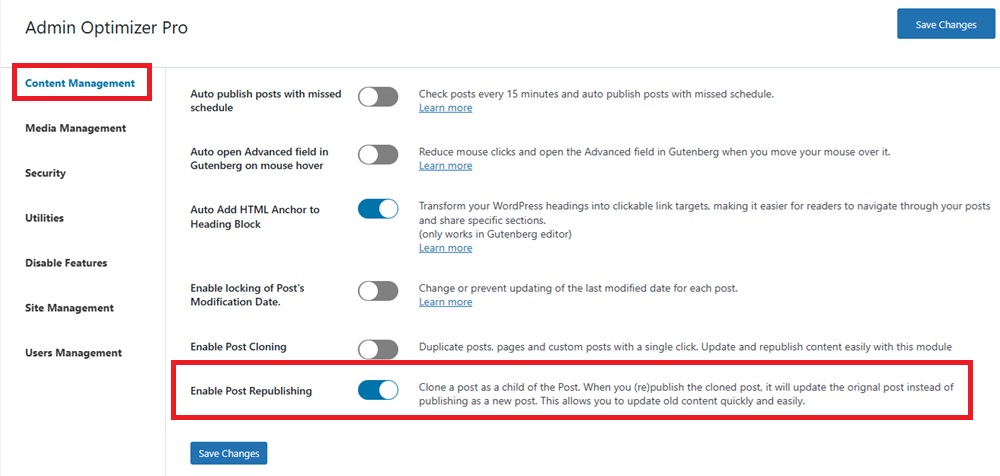
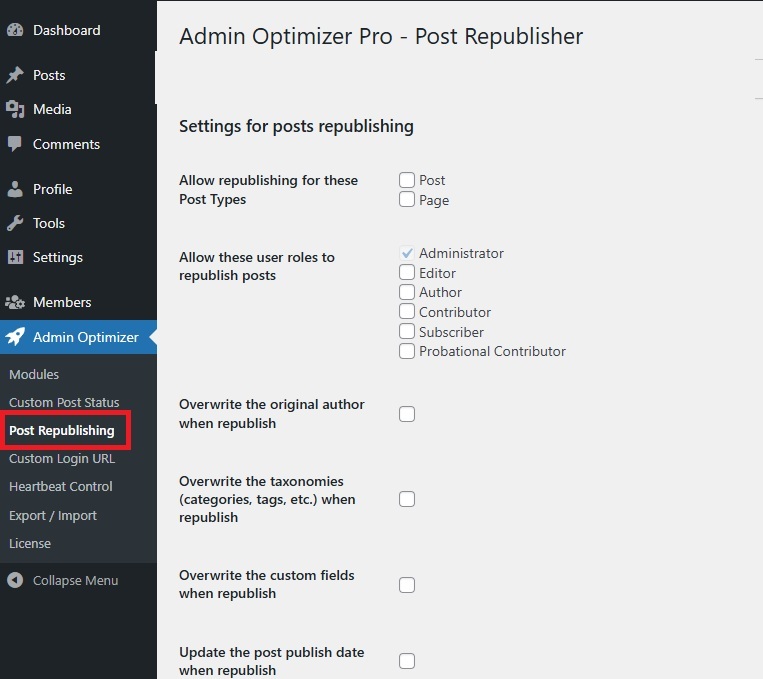
Once enabled, open Post Republising under Admin Optimizer. From here, check all the applicable settings, such as who’s allowed to actually republish posts, what content to overwrite, and what to do with the cloned post after republishing.
For users with permission to create cloned posts to update, you’ll see the option to create a republish version under the title of each post in your list of WordPress posts.
The cloned version works just like any other post. You can even see revision history. Nothing changes in the live version until you’re ready to overwrite it with the clone.
This single module significantly reduces the time it takes to update posts and reduces the chance of errors from copying and pasting or editing live content. Plus, you have full control over who can and can’t publish updated content.
