

WordPress has gotten numerous updates throughout the years to keep up with modern site design. Yet, if you inspect the <head> section, you’ll find WordPress loads extra stuff these modern sites don’t need. Removing useless WordPress head tags improves performance and may even keep you safer from some exploits.
WordPress Hasn’t Clean Up Old Head Tags
There’s a lot to love about WordPress, but often, it doesn’t clean up features that aren’t needed anymore. Years ago, WordPress wanted to be as integration-friendly as possible, which meant having a variety of head tags incorporated by default.
While useful in the past, modern sites don’t need many of these. Still, WordPress is loading them in the background. Remember, the more code that loads, the longer it takes for your site to load as well.
The cleanup job falls on you. You just have to know which head tags are useful, and which need to go.
RSD (Really Simple Discovery) Link
Most users manage their WordPress sites through the admin interface. RSD link is a head tag allowing users to manage their site through remote blog editing tools. In most cases, no one uses this approach anymore.
If you do, that’s fine and you should keep this tag. If you don’t, remove it and keep your site safer from hackers looking to exploit any exposed edit checkpoints.
oEmbed Discovery Links
Some sites depend on the oEmbed discovery links head tag to let other sites embed their content. Typically, social media platforms use this so sites can embed users’ posts.

For most sites, this is completely unnecessary, unless you’re expecting other sites to regularly embed your content on their sites.
WLW Manifest Link
This ties back to RSD Link. It provided support for Windows Live Writer (WLW), which let you remotely manage your blog content. The WLW app no longer exists. That alone means it’s one of the more useless WordPress head tags.
jQuery Migrate
Some older plugins and themes rely heavily on jQuery functions. Modern WordPress themes and plugins have long moved away from jQuery. Review your plugins and theme to see if they use jQuery at all. If not, ditch the jQuery Migrate head tag.
XML-RPC Endpoint
In the early days of blogging, XML-RPC endpoint was a useful head tag that provided access to the XML-RPC API for remote publishing. This API has been replaced by the WordPress REST API. Even worse, is this head is often a target for brute force attacks.
Remove this WordPress head tag and you not only boost performance, but make your WordPress site more secure.
REST API Discovery Links
Even though the REST API replaced the XML-RPC API, it doesn’t mean it’s useful. Most sites don’t provide external access to their REST API. If there are some third-party apps that need to access your REST API, then keep this head tag. Otherwise, skip it.
Emoji Script and Styles
Back when browsers didn’t handle emojis natively, WordPress used these head tags to load emoji support for your users. Now, it’s a pointless tag. Modern browsers handle emoji rendering without needing your site to do it too. It’s redundant.
Shortlink Tag
WordPress’s old permalink structures weren’t anything to brag about. Shortlinks kept the link shorter for sharing. Nowadays, WordPress permalinks are structured in a nicer, easier to use format. Plus, social media platforms do a great job at generating clean URLs when sharing.
Generator Tag
When you remove WordPress head tags, it’s usually just for a performance boost. The Generator tag lets the world know exactly which version of WordPress you’re running. This is dangerous as it lets hackers know too. They can then cater their attack based on any known vulnerabilities of that specific version.
How to Remove These Useless WordPress Head Tags
If you’re a highly technical WordPress site owner that doesn’t mind digging into the code, you can manually remove useless head tags. Just remember, if you remove or edit the wrong code, it can and will break your site.
The best approach is using a WordPress plugin. No need to mess with the code yourself. But, you should always back up your site before making any changes to the code, whether manually or via plugin.
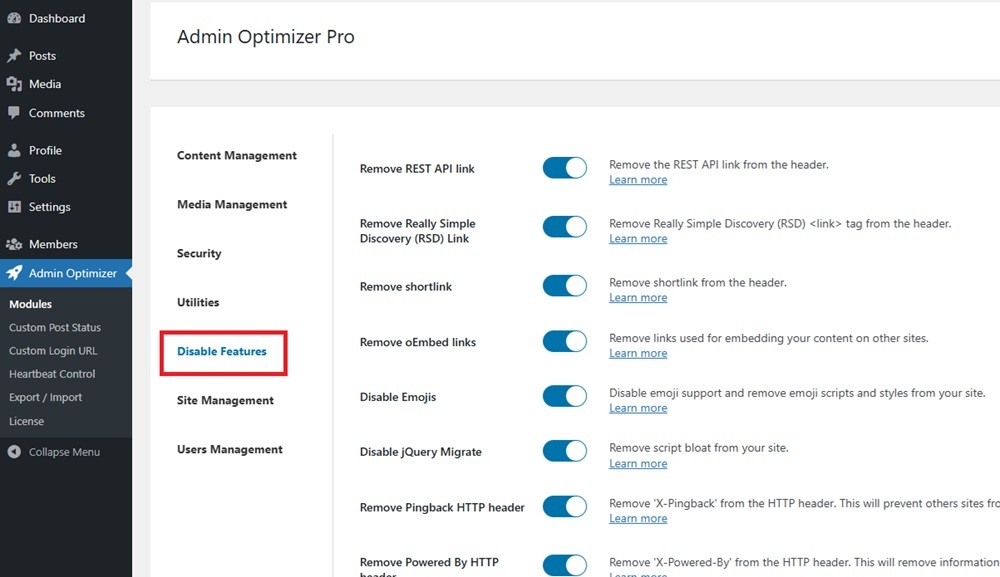
Admin Optimizer makes this incredibly easy. Simple install Admin Optimizer and navigate to Disable Features in the Admin Optimizer section.
Toggle on the WordPress head tags that you want to disable. If there are any you do need, don’t disable them.
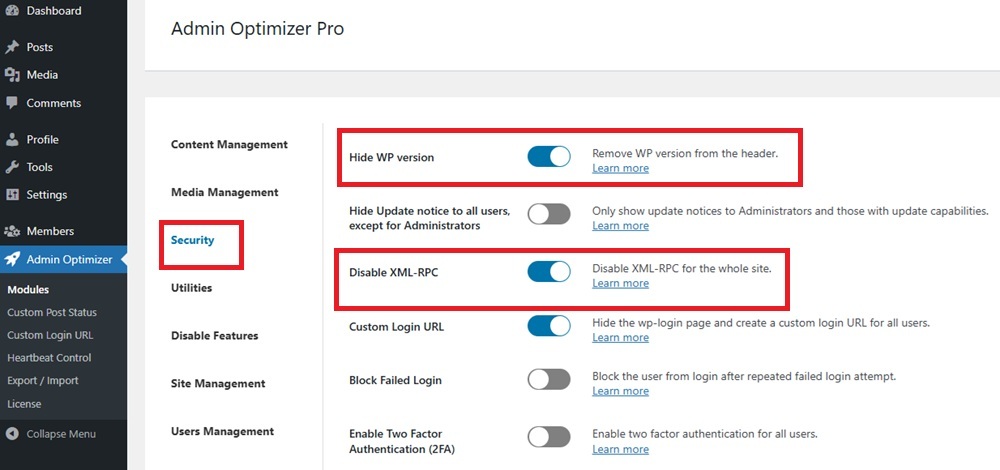
Click Save Changes when you’re done. Then, jump to the Security module and turn on Hide WP Version and Disable XML-RPC. Click Save Changes again.
If you have any issues with your site loading properly or plugins and themes not functioning as they should after you remove WordPress head tags, re-enable all of them and only disable one at a time. Depending on your site, you may still require one or more of these tags.
