

Scheduling posts is one of the easiest ways to automate your WordPress site. However, the WordPress Cron, or WP-Cron doesn’t always handle scheduled tasks the way it should. If you’re tired of worrying about whether a scheduled post publishes on time or not, take a moment to learn how this system works and how to make sure it always works correctly with no errors.
How WordPress Cron Works
A cron job is a scheduler that runs on your server to handle common tasks like publishing a post at a later date. You set the schedule and cron executes whatever scripts or commands you’ve set up.
Often, users set up cron jobs to send emails, backup databases daily, or clear the cache to speed up a site. These run independently in the background without any user input. Ideally, they’re reliable and won’t leave you in a lurch due to random failures.
While WordPress lets you set up cron jobs, it doesn’t use the traditional cron system. Instead, it uses WP-Cron, which is a modified system for WordPress. With WP-Cron, it only works when someone visits your site. So, if you have 10 cron jobs scheduled to run on Monday, but no one visits your site until Tuesday, those jobs don’t run until Tuesday. WordPress’s plugin handbook even mentions this limitation.
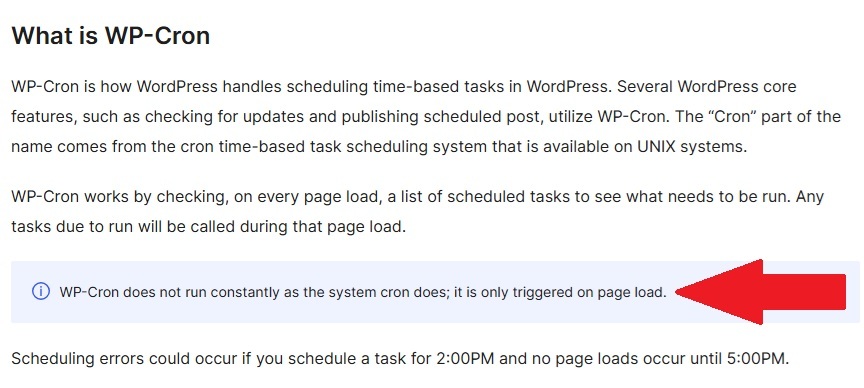
As you can tell, only checking for cron jobs when there’s a visitor introduces a major problem. For high traffic sites, you probably won’t notice any problems. Jobs might be delayed by a few minutes to an hour at most. For low traffic sites, your scheduled jobs could be delayed for hours or even days.
For most WordPress owners, you typically set up WP-Cron to handle:
- Publishing scheduled posts
- Running regular backups
- Sending emails or notifications
- Checking for updates for themes and plugins
With time sensitive tasks, such as sending out a notification to users, you can’t afford to just wait around for a visitor to trigger your jobs. You need a reliable way to ensure WordPress cron works the way it should. You shouldn’t be limited by your traffic. After all, gaining more traffic usually depends on publishing regularly and sending out emails and notifications to subscribers.
Why You Should Run an External Cron
You’re not stuck using WP-Cron for your WordPress cron jobs. You just need to replace it with an external cron job that works reliably every single time. By replacing WP-Cron, you get the automation you expect without relying up on site traffic.
Some benefits of opting for an external cron job include:
- Improved site performance. Often, WP-Cron triggers on every single page load. By disabling it, you eliminate the extra processing. It’s a slight performance boost, but still noticeable.
- Always the exact time you schedule. No more critical tasks left in limbo, such as backups or updates.
- Gain full control over the schedule and frequency.
How to Set Up External Cron Jobs
You have two methods for implementing external cron on your server. Either use your host’s built-in service or use a third-party service. Start by checking if your webhost offers a Cron Jobs section or service.
If it does, set up your job and enter the following into the Command area, replacing “yoursite” with your domain:
wget -q -O - https://yoursite.com/wp-cron.php?doing_wp_cron >/dev/null 2>&1Code language: Bash (bash)If your webhost doesn’t offer this functionality, use a third-party service instead. Most of these services are easy to use and cheap. No matter what service you use to set up your cron jobs, you’ll need to use the following as the URL to call, replacing “yoursite” with your own domain:
https://yoursite.com/wp-cron.php?doing_wp_cronCode language: Bash (bash)A few services you might want to try include:
- FastCron – Free for up to five cron jobs. Premium plans start at $5/month.
- EasyCron – Free limited plan, with premium options starting at $24/year.
- Cronitor – Free limited plan. Pricing varies greatly based on your needs.
- Cron-Job – Completely free, but excessive use may get you banned.
No matter which method you choose, you must disable WP-Cron in WordPress to prevent it from trying to check for scheduled events. Use your host’s file manager and right-click wp-config.php and select Edit. Just before the That's all, stop editing! Happy publishing line, insert the following:
define('DISABLE_WP_CRON', true) ;Code language: PHP (php)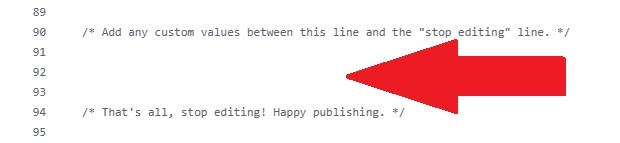
Save the file and upload it back to your host. This stops WordPress from checking so you can run external cron jobs with no interference.
Publishing Missed Posts
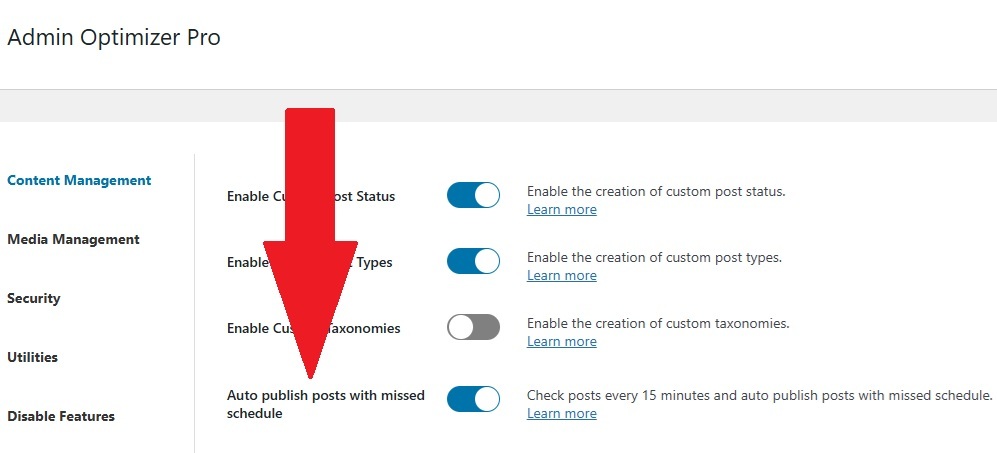
If your main issue is posts not publishing on time, use a WordPress plugin to automatically check and push scheduled posts to publish. With Admin Optimizer’s Autopublish posts with missed schedule module, the plugin checks for scheduled posts every 15 minutes. If the publish time was missed during that 15-minute timeframe, the plugin publishes the post for you.
Just open Admin Optimizer and go to Content Management. Enable Autopublish posts with missed schedule. Click Save and you’re all set.
While you might be okay relying on the built-in WordPress cron on high traffic sites, you’ll more than likely still end up with jobs getting delayed. The best option is to always use external cron jobs. And, use Admin Optimizer as a backup to ensure all posts publish on schedule.
