

When you’re trying to monetize your site, you have three WordPress text files that make a major difference in how search engines crawl your site, along with how ad networks serve up ads. Typically, trying to manage robots.txt, ads.txt, and app-ads.txt is rather cumbersome. But, it doesn’t have to be this way.
What Are Robots.txt, Ads.txt, and App-ads.txt
These three little text files are just plain text. You can easily open and edit them via Notepad or any note editor. Then, you upload them to your WordPress’s root directory.
You need all three if you want search engines to find and use ads to make money. If you don’t have them or they’re not managed correctly, you might find your site shunned by search engines and dealing with major ad issues.
Keep in mind that if you don’t serve up ads on your site, you don’t have to use ads.txt or app-ads.txt. These are only for ads. You should always have robots.txt, though.
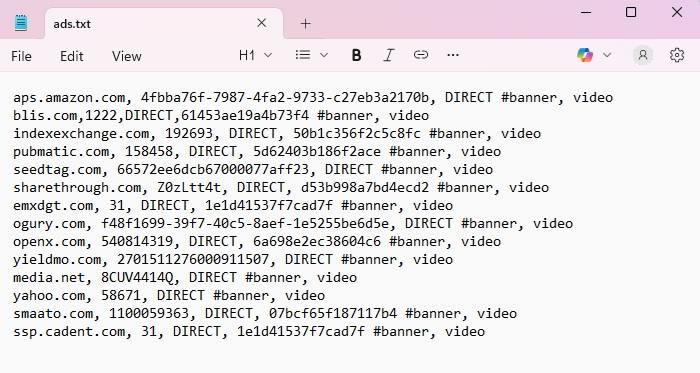
Each file serves a different purpose:
- Robots.txt – Tells search engines the pages you want them to crawl and index. Otherwise, search engines just grab whatever it can find. This means private pages might become public and public pages might not get indexed correctly.
- Ads.txt – This stands for Authorized Digital Sellers. It’s designed to prevent ad fraud by listing which ad networks, resellers, and exchanges are authorized on their site. It’s just a list of advertising companies and IDs, along with whether they’re a direct seller or reseller.
- App-ads.txt – Consider this the mobile version of ads.txt. It works the same way, but for mobile apps.
The Usual and Obsolete Method
Since these are just text files, it might seem incredibly simple to manage robot.txt, ads.txt, and app-ads.txt. But, it’s more troublesome than you might think.
The usual method is straight-forward, but error-prone. First, you create a text file on your computer and manually enter all the required details. Then, you upload the files to your site’s root directory. Typically, you’ll use FTP or whatever file manager tool your web host uses.
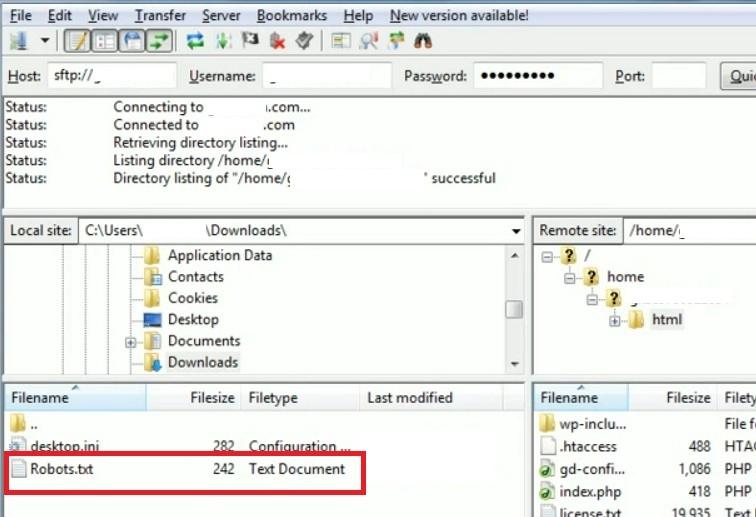
Sounds simple enough, right? But, what if you have no idea how to use FTP or webhost file managers? This does require some technical know-how to upload correctly. And, if you upload them to the wrong directory, then the crawl bots cannot find them and things might not work as you wish.
While that’s easy enough to learn, there’s one other issue. Human error. If you mistype something in one of the files or mess up the formatting in some way, search engines might never crawl your site and you could fail ad verification.
Every time you need to update these files, you have to edit them on your computer and re-upload. This means even more chances for something to go wrong. Plus, it’s just tedious overall.
The Better Way to Manage Robots.txt, Ads.txt, and App-ads.txt
If you don’t like the idea of having to create these files yourself and manually upload them every time, there is an easier way. As you might guess, a WordPress plugin is the best solution. While you shouldn’t use numerous plugins on your site, multipurpose plugins that simplify WordPress management are the perfect addition to your site.
In this case, we’ll dive into Admin Optimizer’s Robots.txt, Ads.txt and App-ads.txt module. This lets you manage robots.txt, ads.txt, and app-ads.txt directly in WordPress.
Before you do anything, if you’ve manually uploaded these files before, please remove them.
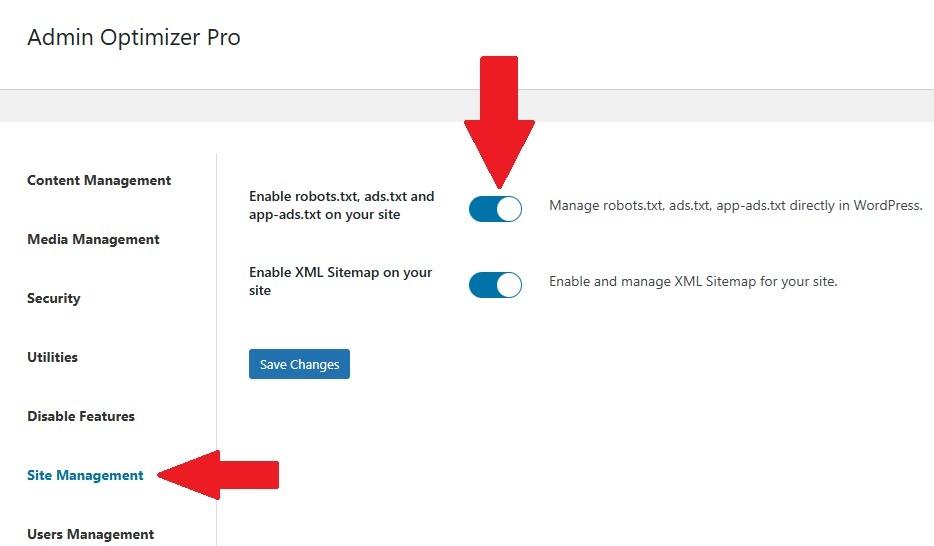
Now, open Admin Optimizer in your WordPress dashboard and select Site Management. Turn on Enable robots.txt, ads.txt, and app-ads.txt on your site. Click Save changes.
Once enabled, click Manage ads.txt and robots.txt in the dashboard side panel. Enter all relevant details in the appropriate text boxes.
Even if you’ve never created these files before, the module creates them in the root directory for you. And, every time you update, the module takes care of applying the changes to the files. No re-uploading necessary. Click Save changes when you’re done.
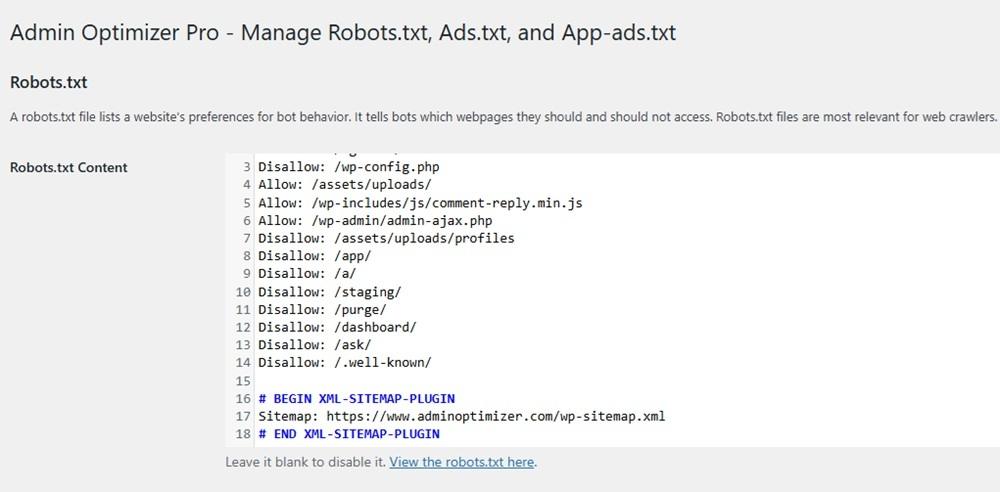
Please note, if you’re not sure if you’ve entered your ad details correctly, there’s a verification option under ads.txt and app-ads.txt. Click the link to verify.
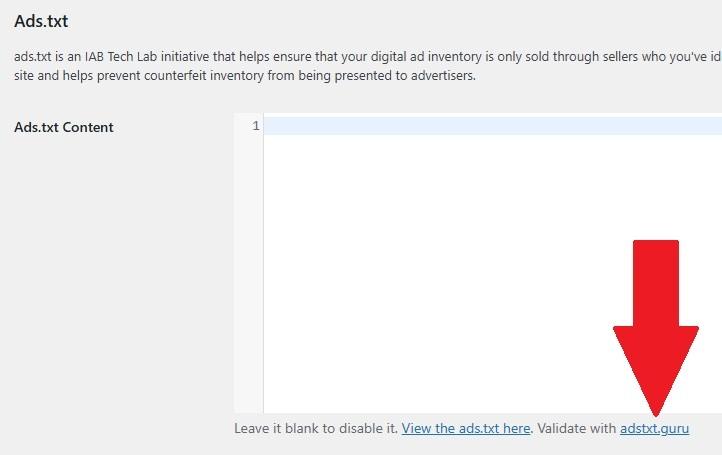
With this approach, you avoid manually uploading into the wrong directory. And, you get to edit everything in WordPress, so no technical knowledge necessary. It’s a simpler and far more efficient process.
You still have to type in all relevant data, so be careful. If something’s not working correctly, open up the module again and edit as needed.
Another tedious task Admin Optimizer helps with is sending emails. And, if your site’s feeling sluggish, see how to clean up your WordPress database.
