
Almost every WordPress site needs a dozen of plugins to work well, but that doesn’t mean it needs a massive collection of plugins. Sadly, plugin overload is a real issue plaguing WordPress sites. No matter how many you have, you can reduce WordPress plugins without breaking your site and boost performance at the same time.
Why Reduce WordPress Plugins
Every single plugin you install adds extra code to your site. Every time pages load, that extra code has to run. It might only be a fraction of a second, but multiply that by dozens of plugins and a fraction turns into multiple seconds. Users might not be patient enough to wait.
Page loading speed isn’t the only issue though. The more plugins you have, the more likely you are to have the following problems:
- Slow performance for admins, content creators, and site visitors
- Plugin conflicts
- More security vulnerabilities
- Excessive maintenance tasks
- Failed tasks (plugin conflicts may prevent critical tasks from running)
Over time, the issues compound until it turns into an administrative nightmare that has you questioning whether your site’s salvageable or not.
You could just hope for the best, but too many plugins eventually damages your SEO and conversions, drastically increases site maintenance and admin tasks, and increases the possibility of downtime, especially after updates.
Instead, optimize WordPress plugins by only keeping what you need. Reducing plugins might seem overwhelming at first, but you get to enjoy benefits like:
- Faster overall site performance
- Better security (less vulnerabilities with fewer plugins)
- Improved compatibility
- Easier troubleshooting if something does go wrong
- Cleaner, less stressful backend for admins and editors
- Easier maintenance with fewer updates and settings to manage
Audit Your Existing Plugins
The first step is a thorough audit of your existing plugins. Admittedly, it’s not the most fun part of the process, but you’ll have far less to manage after you’re done.
Make a list of all your plugins, even if you don’t actively use them. If they’re installed, add them to the list.

Then, ask yourself the following:
- What does the plugin do? Make a quick list of features.
- Which feature(s) do you actively use? If there are features you don’t use, make a note of those too.
- Do you have duplicate plugins that offer the same features? Even if they’re not identical, if they offer similar features, consider them duplicates. Make a note of extra features that may make one duplicate better than the other.
- Is the plugin critical to your site’s functionality?
- Is the plugin actively maintained? If the developer no longer maintains it and it hasn’t received an update for more recent versions of WordPress, it might not be safe to use any longer.
Typically, it comes down to duplicate, must-have, and just nice-to-have plugins. Reduce WordPress plugins by focusing on what you must have instead.
Decide Which Plugins Stay and Go
Once you’ve got your list, it’s time for the hardest part. Carefully decide what you’ll do with each plugin on your list:
- Keep the plugin – These are plugins you actively use and don’t contribute to any feature bloat. They’re also not duplicates.
- Replace completely – This is mainly for older, legacy plugins or bloated plugins that don’t serve your site well. You still need the feature, but the existing plugin isn’t working.
- Consolidate – If you have multiple single-purpose plugins, see if you could consolidate them with a better multipurpose plugin. For instance, if you have five SEO plugins that handle individual tasks, consider an all-in-one SEO plugin.
- Remove – If you don’t use the plugin, or it’s simply a sub-par duplicate, ditch it. It’s not worth keeping as a just in case option.
Migrate to Admin Optimizer to Reduce Plugins
One of the reasons most WordPress users just deal with an unmanageable number of plugins is because they don’t know what to use instead. You already know you need to reduce WordPress plugins, but figuring out how to remove unused WordPress plugins safely makes you hesitate.
Admin Optimizer was designed to eliminate this headache and helps you optimize WordPress plugins by easily replacing at least 10 plugins with just one easy to maintain plugin. It features 46 modules you can toggle on and off as needed. There’s no bloat and zero conflicts since they’re all part of the same plugin.
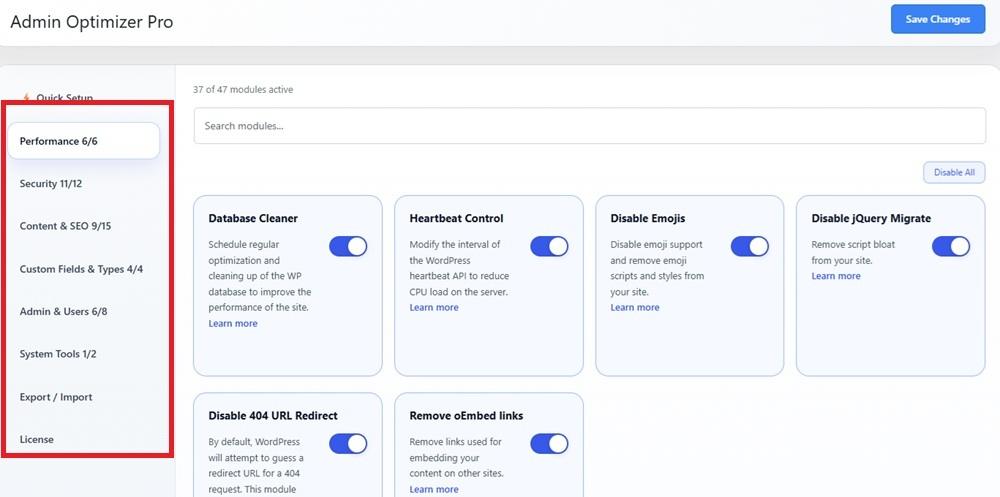
Before you remove any plugins, back up your site and then install Admin Optimizer. While the pro version gives you more options, the free version still helps you reduce your plugins and boost WordPress performance.
Take the time to go through every module to see which of your existing plugins Admin Optimizer can replace. The modules cover a wide range of plugins, including:
- Performance
- Security
- Content and SEO
- Custom Fields and Types
- Admin and Users
- System Tools
You can even import and export settings if you need to.
Once you’ve identified which plugins Admin Optimizer can replace, it’s time to start enabling modules. From your dashboard, you can either start with the Quick Setup to enable a collection of modules based on your needs or visit each section individually and enable the modules you want.
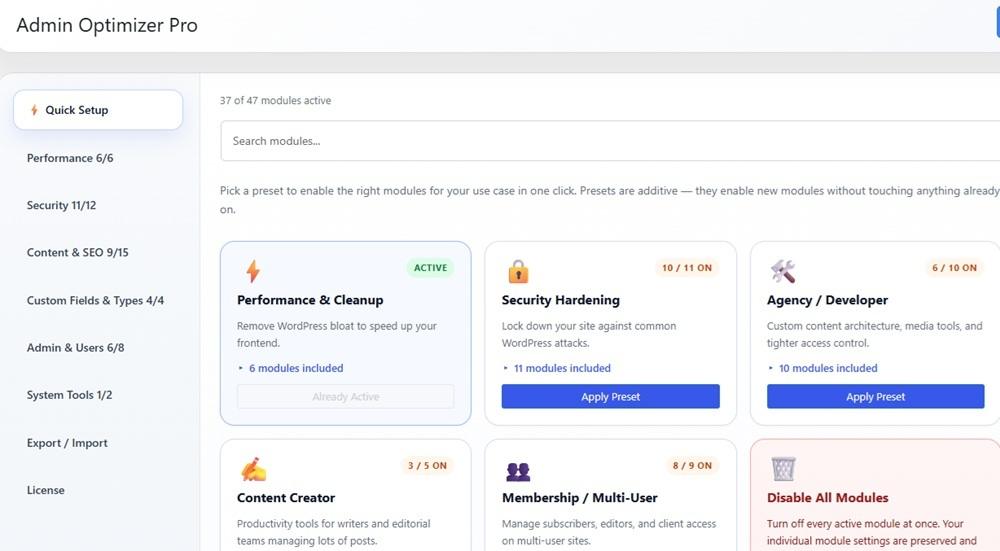
For any modules you enable, select the module from your dashboard to configure its settings. You may want to check your existing plugin(s) if you’re unsure about any configuration settings. The goal is to configure Admin Optimizer before you remove any existing plugins.
Every module includes various settings. Use the interface to change settings. No coding necessary. For instance, the database cleaner lets you set a schedule and choose what to delete.
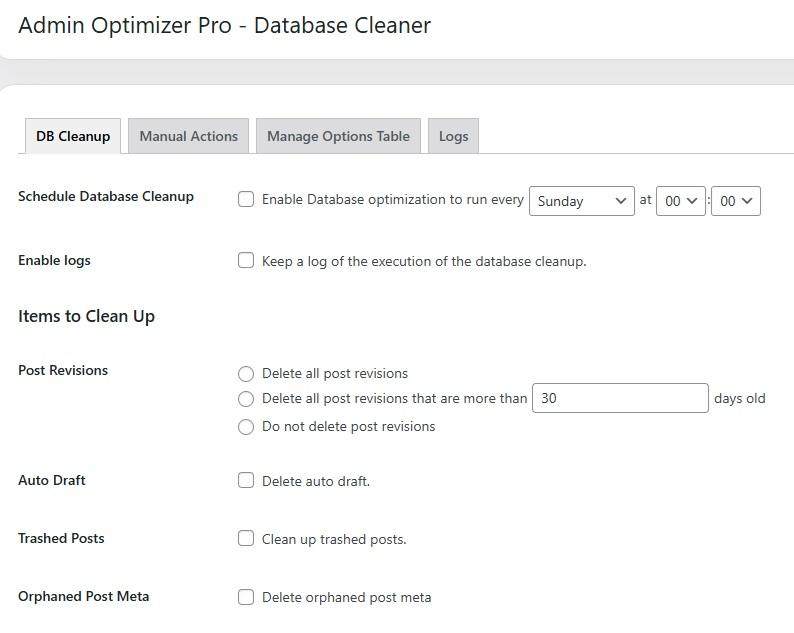
Only when you’ve configured everything, start disabling and removing any unnecessary plugins one by one. You might find you easily replace more than 10 plugins. Admin Optimizer is a multipurpose plugin that doesn’t bloat your site thanks to letting you choose which features to enable or disable.
It also won’t break your site. All the modules within Admin Optimizer are fully compatible with each other since they’re essentially one plugin. Plus, with just one plugin, you boost site performance. And, there’s only one plugin to maintain with all settings in one place.
Upgrading to Admin Optimizer Pro saves you hundreds every single year. So, you save money and time and reduce WordPress plugins. It’s a simple, yet highly effective way to optimize WordPress.
