
Advanced Custom Fields, better known as ACF, has been the go-to for creating more dynamic, custom sites in WordPress. Just because it’s popular, that doesn’t mean it’s your only option. Before you settle, check out some ACF alternatives for WordPress to still create more complex, yet structured sites.
ACF Pros and Cons
One of the things that’s made ACF so incredibly popular is being able to create structured content systems without needing to code everything yourself. The Advanced Custom Fields plugin lets you easily create custom fields for your site to add to posts, pages, custom post types, and users. No technical expertise needed.
Long-term users love what the plugin offers, such as:
- Lets you create nearly any type of structured content
- Easy to use
- Massive ecosystem of tutorials and integrations
- Designed to be developer-friendly to integrate with WordPress themes
- Actively maintained and trusted with millions of active installs
While all of those ACF pros are true, that doesn’t mean this WordPress custom fields plugin is perfect. Simple or more performance focused sites often run into issues, such as:
- Large field groups lead to repeated queries that strain your database
- Unless you’re using strict structure conventions, field groups get out of hand quickly
- Overkill for simple sites where WordPress’s built-in features handle everything they need
- Without a clear strategy, ACF gets difficult to maintain
Depending on your site’s need, you have to consider if the performance and maintenance trade-offs are worth it.
When ACF Becomes Overkill
Typically, ACF is all about giving you more flexibility to customize your site and site structure. That doesn’t mean every site needs it. In fact, the ACF plugin is overkill for many sites, especially simpler sites.
When the plugin was first introduced, WordPress’s built-in editor wasn’t nearly as useful as it is today. The modern block editor and the block editors built into many themes and plugins handle everything a site needs without relying on a complex setup with ACF.
If your site only needs basic text and image fields, you don’t need something this powerful. Trying to these simple fields with ACF just creates extra work and may even slow your site down.
For sites that mainly create static pages, you can easily manage the structure with WordPress’s built-in tools. You won’t use most of the features in ACF, making it far more than you need.
And, even if you don’t have a simple site, it’s easy to get caught up in trying to take advantage of everything ACF offers. Suddenly, you have such a complicated setup that no one understands it. And, if no one understands it, no one uses it.
ACF Alternatives to Try
Picking the right Advanced Custom Fields alternative means thinking about what you actually need. If you don’t need something as feature rich or complex, go with a simpler alternative. Also check compatibility before switching to anything else.
Some of the top alternatives include:
- Pods – Works similarly to ACF for custom fields and custom content types. One benefit is you can disable creating custom fields to boost performance. It also works alongside ACF if you want to use both.
- JetEngine – This dynamic content plugin gives you everything you need to create and manage custom fields and post types. While it does have more advanced features, there isn’t a free version available.
- Toolset – This is another premium-only plugin like JetEngine to help you build custom WordPress structures with no coding required.
- Admin Optimizer Custom Fields Builder – The multi-purpose plugin includes a Custom Field Builder module capable of replacing most of what ACF does in a much simpler way.
The only downside with these ACF alternatives is you still have to carefully manage your structure to avoid the same issues you have with ACF. Plus, if you only need custom fields, these might all be overkill.
WordPress’s Gutenberg editor does offer a way to manually create custom fields. This works well for a simple setup, but you also have to make some minor edits to your theme’s code to get everything to work right.
Use the Custom Field Builder Module Instead
One of the best Advanced Custom Fields alternatives is the Custom Field Builder module in the Admin Optimizer Plugin. It drastically simplifies the creation of custom fields, post types, taxonomies, and post statuses. The best part is you don’t have to worry about conflicts with themes and other plugins. Fields get stored as standard metadata, preventing compatibility issues.
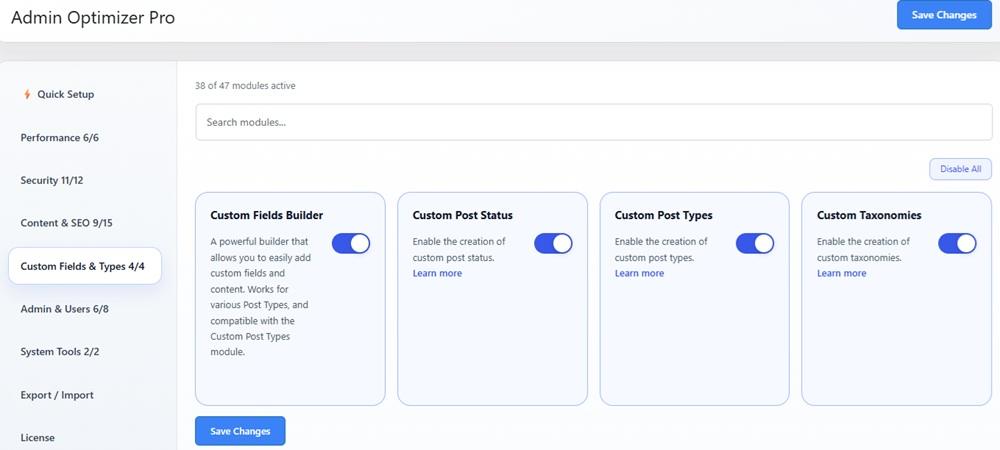
In most cases, this module completely replaces ACF. This WordPress custom fields plugin isn’t limited to just custom fields, though. This is what also sets it apart from ACF.
The Custom Field Builder module is just a part of a multi-purpose plugin to help manage content, security, performance, admin, and more. Everything’s in a single plugin, and you simply turn modules on/off as needed. It’s a single plugin to learn and manage versus numerous WordPress plugins. As we all know, fewer plugins makes your site more efficient.
Start by opening Admin Optimizer in your dashboard and selecting Modules -> Custom Fields & Types. Enable Custom Fields Builder. You can also enable Custom Post Status, Custom Post Types, and/or Custom Taxonomies. As with everything in Admin Optimizer, you only have to enable what you need.
Once enabled, select Custom Fields & Types from your dashboard. Select Custom Fields Builder to start creating your first custom fields group. Click Add New Fields Group to get started.
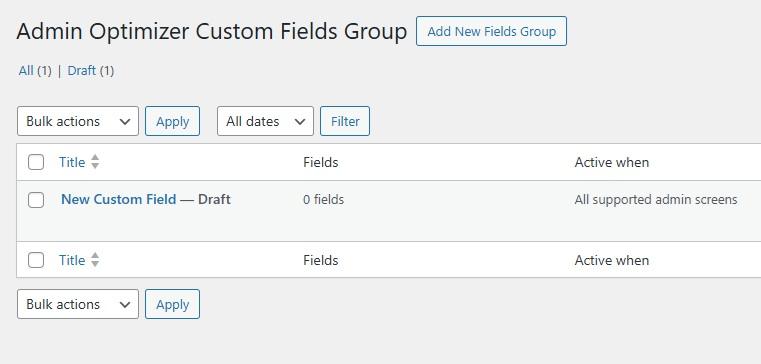
Enter a title for your group. While the default for the custom field is Text, you can change this. Just select Untitled field to start editing.
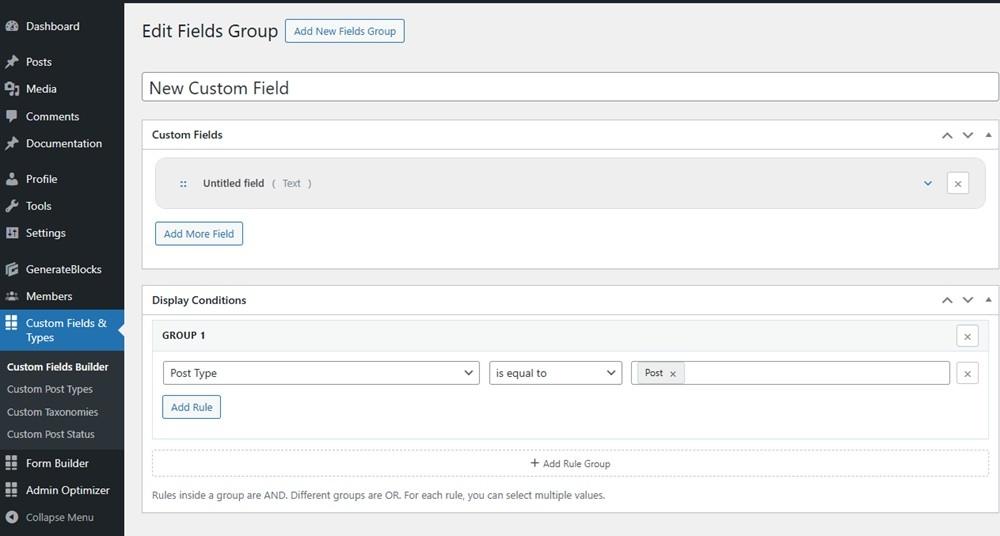
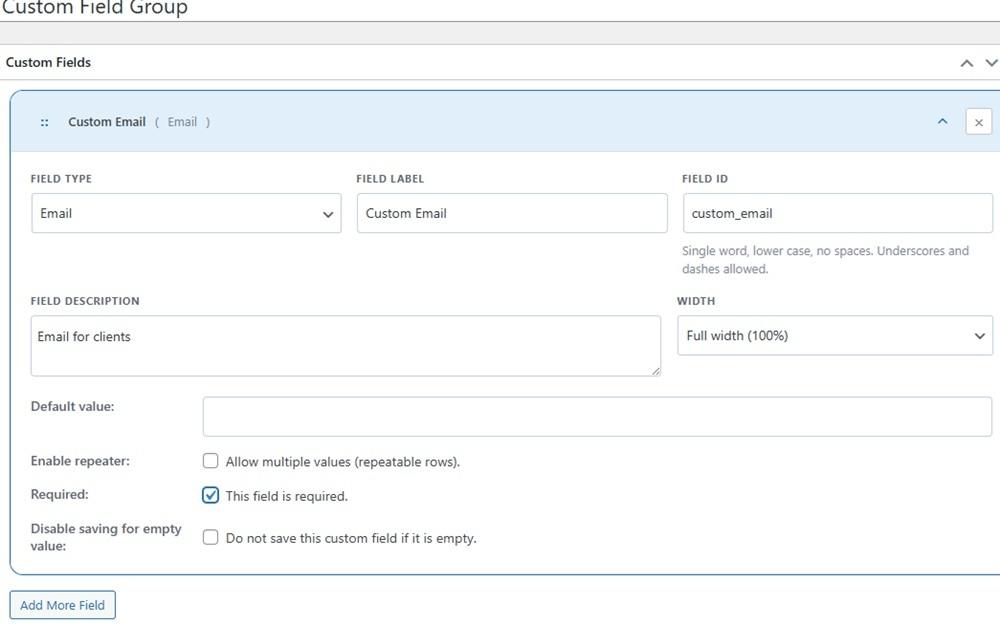
Select a Field Type from the drop-down list and then enter a name for your field. The Field ID autopopulates with a name, but you can change this. Add your description, default value, whether it’s required or not, and any other options relevant to your field. When you’re done, click Add More Field if you want to create more fields.
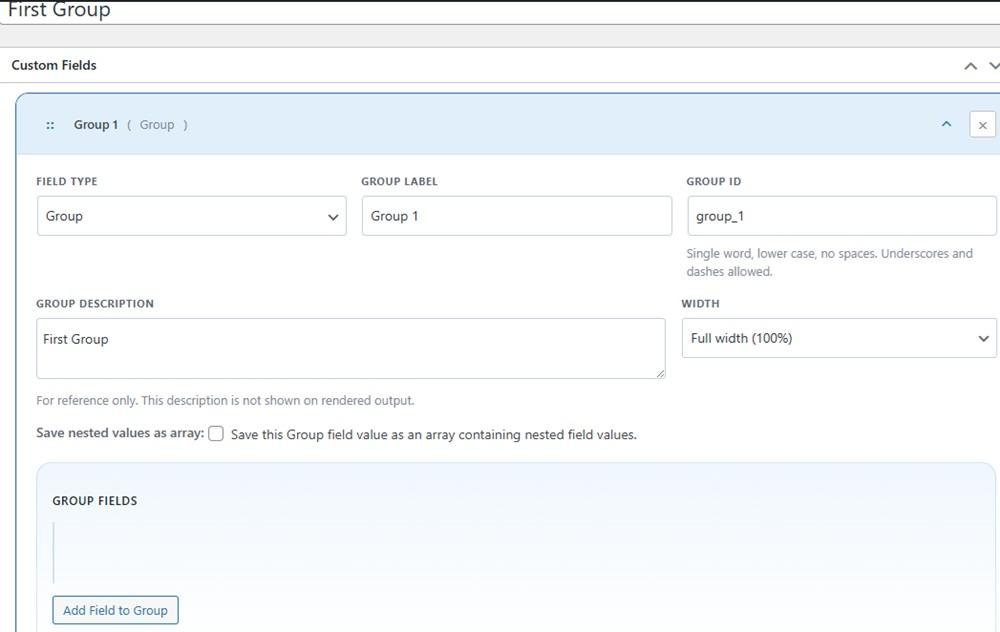
If you want to create multiple fields and group them as a single unit, select Group from the Field Type drop-down box. Just like with creating a custom field, add a label, ID, and description. Click Add Field to Group to start adding fields to this group. Move them up/down or remove them at any time.
Alternately, select Tab from the Field Type drop-down box to render as a tab panel. Add multiple tabs, along with your group of custom fields for the tab(s).
So far, you’ve created the fields, groups, and/or tabs. But, that doesn’t mean they’re displaying yet. When creating custom fields, scroll down to the Display Conditions section. Select one of the five options: Post Type, Post Status, Taxonomy, User Role, or Screen.
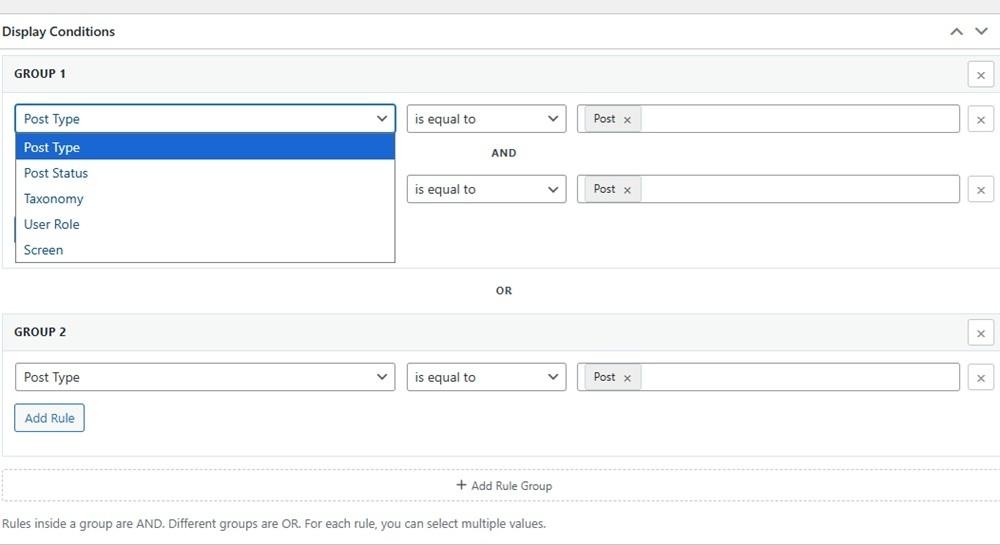
It’s important to pay close attention to how Display Condition rules are enforced. Within a group of rules, AND logic is used. This means all conditions must be met.
Create a second group of conditions (+ Add Rule Group) to enable OR logic. Each group of conditions can have multiple rules.
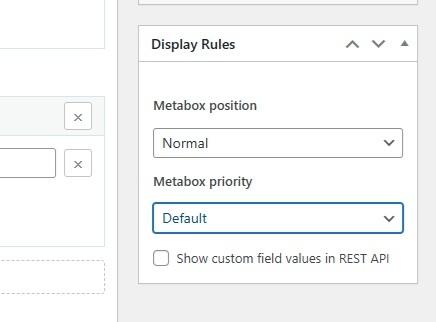
The final step is to choose your Display Rules. This is in the sidebar. Choose where you want the custom field position to be when it’s rendered. Choose your Metabox Position (Normal, Side, or Advanced) and Metabox Priority (High, Core, Default, or Low).
When everything’s the way you want it, just publish it to enable it. Remember, you can go back and edit things at any time just like you would with a post or page. Just go into the Custom Fields Builder module to make changes.
When you’re writing a post and already have values for your custom fields, it’s easy to add them to your post. While you’re in the post editor, click the + to add a new block. Then, select Custom Field or Custom Field Group. This places it directly into your post. Without values, you won’t see data yet.
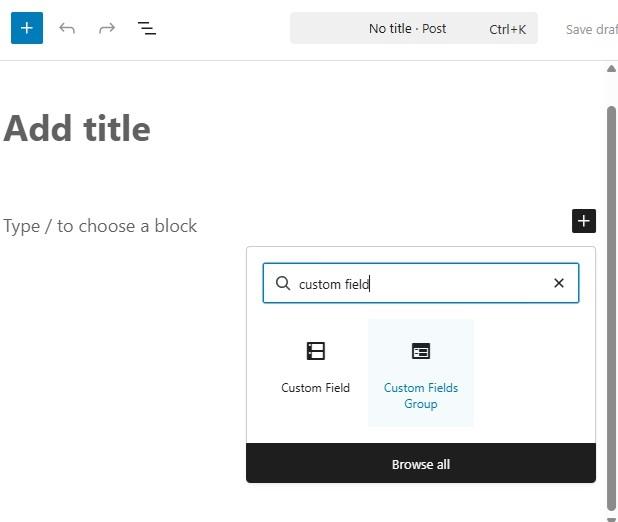
No coding or complicated setups to deal with. This makes it easy for anyone to create custom fields for their WordPress site without the bulk and overkill that comes with the Advanced Custom Fields plugin.
