

A common myth is once you’ve published content on your site, you’re done with it. If you’re not regularly updating your content, you’re telling search engines the content’s not important anymore. If you want to boost your site performance, you need to update your content on a regular schedule.
Updating Old Content is Vital for SEO
I’m sure your content was absolutely amazing when you first published it a year or more ago. But, is it still relevant now? Are the keywords you originally targeted still the best ones? Have instructions or products changed? Are visitors still engaging with it at all?
Google and other search engines give fresh, relevant, up-to-date, and accurate content a boost over outdated content. As other sites publish more updated versions of the same topic, their content get pushed to the top.
To get more clicks and more eyes on your content means you will have to update your content more regularly to keep it fresh.

A few things to keep in mind:
- People trust newer content. If you’re looking for accurate info online, would you trust something published within the last year or something published eight years ago? You’d likely click and engage with the newer content first.
- Increase your internal links. The longer users stay on your site, the more authoritative it appears to search engines. Don’t let your old content fade away. Update it, add in more links to your latest content, and keep users browsing your site.
- Ensure your content’s still correct. I know some things never change. But, new features, product models, updates, case studies, and more come out all the time. Make sure your content is always reflecting these changes so users trust you more.
- Target new keywords and phrases. Check out user search intent for your topic. You may find there are new keyword opportunities to help you outrank the competition in search results and AI overviews.
- Adapt to search algorithm changes. Google and other search engines update their algorithms regularly. Stay abreast of these changes. Search engine optimization means adapting and updating content to not only impress users, but any changes algorithms throw your way.
I know it’s not the most convenient thing to constantly update your content However, for SEO, it’s just as vital as creating new content.
Existing Methods for Updating Content in WordPress
You have two main methods for updating old content in WordPress. The first is as straightforward as it gets. Just open up the post in WordPress editor and make your changes.
Unless you’re making incredibly minor changes, I don’t recommend this. It’s straightforward, but also the riskiest option. You can’t save as you go. Instead, it’s all or nothing. You’re editing a live post. Hit Save or Publish too soon and your readers get treated to an in progress draft.
If you feel you can make all the necessary edits in one session with no interruptions, go for it. Otherwise, I suggest choosing a different updating option.
The second method involves creating a new post to work from. Simply open the old post in the editor, copy everything, and paste it into the new post. Now, you’re free to edit at your convenience. This doesn’t affect the live post in any way.
When you’re ready, open the old post in the editor, delete everything, and copy in the new post’s content. Then, hit Update to publish the changes.
Some people prefer to do this method using Google Docs or Microsoft Word. I don’t recommend that as formatting often gets lost in translation.
The second method works best for more in-depth updates or collaborations. Just remember which version of the post you’re editing so you don’t accidentally mess with the live version.
The Easiest Way to Update WordPress Content
What if you could skip a few copy/paste steps when using the second WordPress content update method? If you use the Admin Optimizer WordPress plugin, you already have a third way to update content in WordPress safely.
The Post Republishing module creates a clone of the original post. Make any edits and updates you need to this republish clone just like you would a new post. But, instead of copying and pasting the changes into the live version, publish the clone. It replaces the live version and keeps all postmeta, custom fields, and taxonomies intact. Once published, the clone is deleted, keeping your WordPress database cleaner.
In the Admin Optimizer plugin, select Content Management and turn on Enable Post Republishing. Click Save Changes.
Then, open the Post Republishing module and adjust the settings, including permissions, what to do with the cloned post (deleting is the default), what to overwrite, and more. Click Save Changes and you’re done.
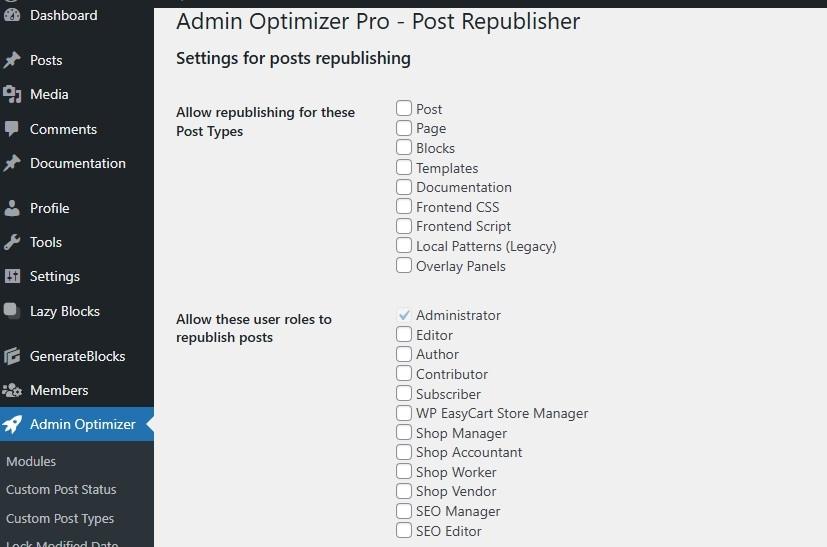
Anyone with the correct permission now has the option to create a republish version under each WordPress post.
If you want to improve your SEO even more, try adding a Table of Contents to you posts. I also suggest learning more about the WordPress Heartbeat and how it affects your site’s performance.
