Overview
AI Connectors extends the default WordPress 7 AI connectors with provider setup for Anthropic, Google Gemini, OpenAI, and OpenRouter. Once a provider is connected, Admin Optimizer modules and compatible third-party plugins can use the same configured AI connection instead of each plugin needing its own provider settings.
The module stores provider keys, lets you test connections, routes each AI task to a selected provider/model, and can log request metadata.
How It Works
After you enable the module, open Admin Optimizer > AI Connectors and configure at least one provider API key. Admin Optimizer features and compatible plugins can then call the shared WordPress AI connector layer, and AI Connectors resolves the correct provider and model for each task.
AI Connectors can run in native mode when WordPress AI client infrastructure is available. Otherwise, it loads a bundled compatibility layer for the text-generation features used by Admin Optimizer.
When to Use It
Use it when you want WordPress AI features, Admin Optimizer Pro modules, or compatible third-party plugins to generate AI-powered suggestions or text through a provider you control.
SEO Manager uses this module for the Generate SEO Suggestions action.
How to Enable
Go to Admin Optimizer > System Tools and enable AI Connectors.
Setup Guide
- Go to Admin Optimizer > System Tools.
- Toggle the switch for AI Connectors.
- Open Admin Optimizer > AI Connectors.
- In the Connectors tab, add an API key for Anthropic, Google Gemini, OpenAI, or OpenRouter.
- Use Test Connection to verify the provider.
- Open the Settings tab.
- Decide whether to enable API key encryption.
- Decide whether to enable the usage log.
- Configure Choose Model for Each Task.
- Save the settings.
Recommended default configuration
- Configure provider keys in
wp-config.phpconstants or environment variables when possible. - If you save keys in the database, enable Encrypt API Keys.
- Keep Enable Usage Log disabled unless you need request counts, token totals, response times, and provider/model history.
- If logging is enabled, use the shortest retention period that matches your reporting needs.
- Configure the default route and any active module-specific routes before using AI features on production content.
Step-by-step setup example
- Enable the module and open Admin Optimizer > AI Connectors.
- Open the Connectors tab.
- Expand the provider you want to use.
- Paste the API key and click Save Key.
- Click Test Connection.
- Repeat for any other providers you want available.
- Open the Settings tab.
- Enable Encrypt API Keys if the key is saved in the database.
- Optional: enable Enable Usage Log and choose 7, 30, or 90 days for retention.
- In Choose Model for Each Task, select the provider and model for the default route and any feature routes such as SEO Suggestions.
- Save the settings.
What the user should test after setup
Test the provider connection from the Connectors tab. Then use a feature that depends on AI Connectors, such as Generate SEO Suggestions in SEO Manager, and confirm it returns usable suggestions.
Common mistakes or things to verify
- Saving a key is not the same as testing it. Always use Test Connection after adding or replacing a key.
- Environment variables and PHP constants take priority over database-saved keys.
- Deleting a database key will not remove a key defined in
wp-config.phpor the server environment. - Changing WordPress security salts can make encrypted database keys impossible to decrypt. Re-enter keys if the UI warns that security keys changed.
- The routing table only lists providers that have configured keys, except when an old saved route needs to remain visible.
- Usage logging stores metadata only. It does not store prompt text or response text.
Verify it’s Working
The provider card should show a connected status, and Test Connection should return a successful result.
If SEO Manager is enabled, edit a supported post or page and click Generate SEO Suggestions in the SEO Settings metabox. A working AI Connectors setup should generate suggested SEO fields for review.
Supported Providers
AI Connectors supports:
- Anthropic (Claude):
claude-haiku-4-5,claude-sonnet-4-6. - Google Gemini:
gemini-2.5-flash,gemini-2.5-pro. - OpenAI:
gpt-5.5,gpt-5.4,gpt-5.4-mini,gpt-4o-mini,gpt-4o. - OpenRouter:
meta-llama/llama-3.3-70b-instruct,meta-llama/llama-3.1-8b-instruct,mistralai/mistral-small-3.2-24b-instruct,mistralai/devstral-small-2505,google/gemini-2.5-flash,google/gemini-2.5-pro,deepseek/deepseek-chat-v3-0324,qwen/qwen3-235b-a22b, andopenrouter/auto.
Settings
Connectors tab
The Connectors tab contains provider cards for Anthropic, Google Gemini, OpenAI, and OpenRouter.
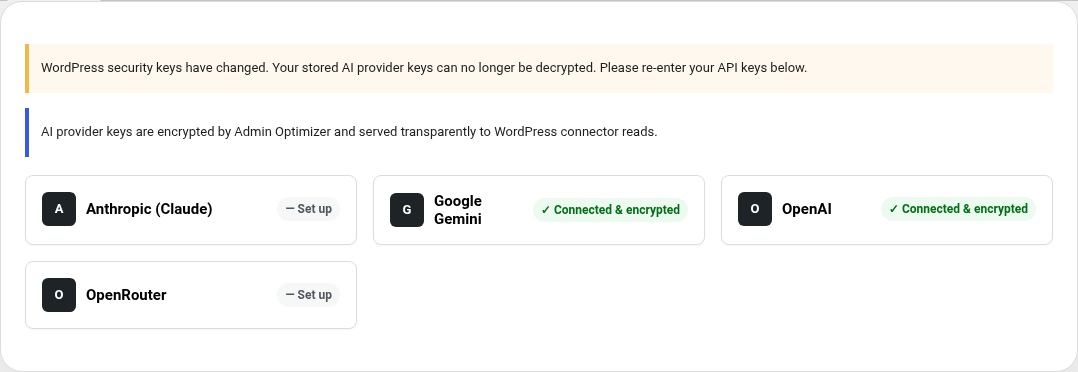
Each provider card can include:
- API Key.
- Save Key.
- Delete Key for database-saved keys.
- Test Connection.
- Get API key.
- Secure this key instructions.
- A
wp-config.phpconstant snippet.
For the strongest protection, define API keys in wp-config.php or server environment variables instead of saving them in the database.
Settings tab
The Settings tab includes:
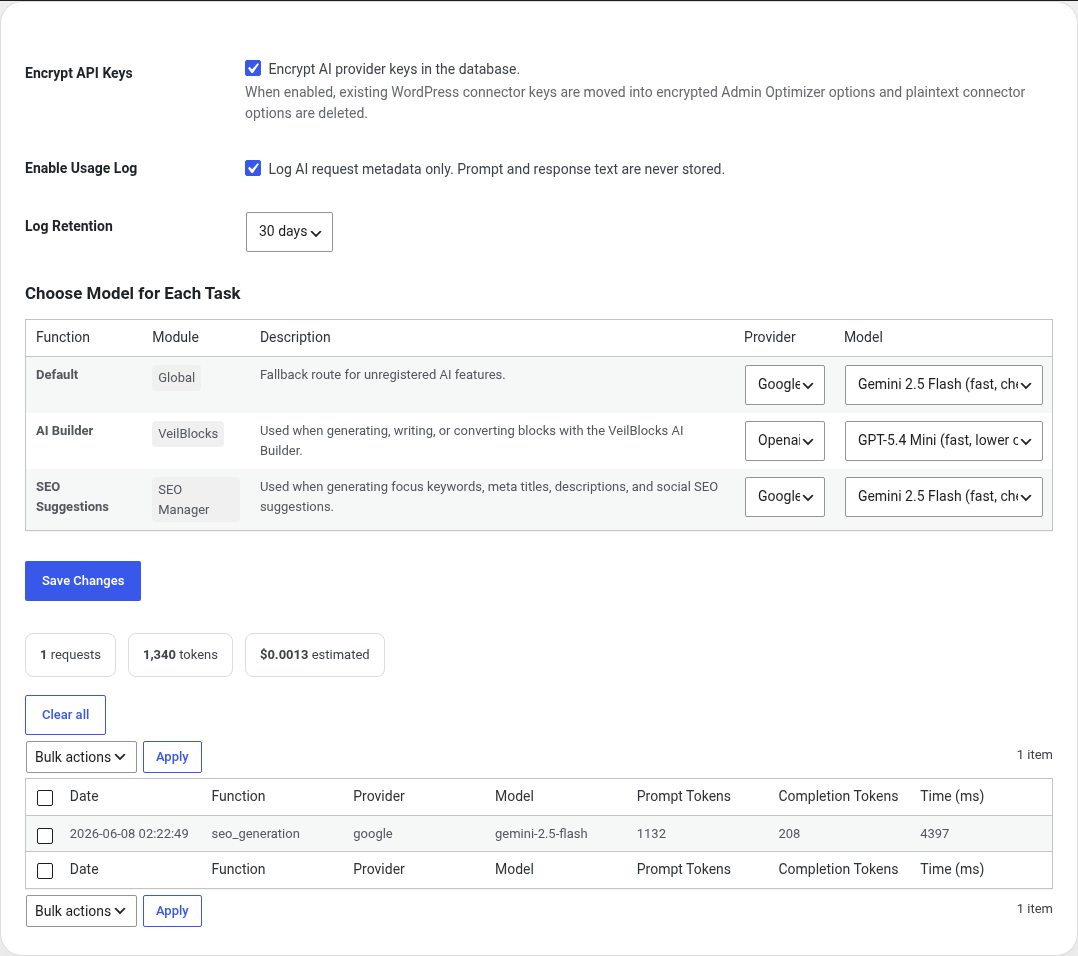
- Encrypt API Keys: encrypt database-stored provider keys.
- Enable Usage Log: store request metadata only.
- Log Retention: keep logs for 7, 30, or 90 days.
- Choose Model for Each Task: route AI tasks to a provider and model.
- Usage log summary and log table when logging is enabled.
API Key Storage
AI Connectors checks provider keys in this priority order:
- Environment variable.
- PHP constant.
- Database option.
Supported key names:
| Provider | Environment variable / constant | Database option |
|---|---|---|
| Anthropic | CONNECTORS_AI_ANTHROPIC_API_KEY | connectors_ai_anthropic_api_key |
CONNECTORS_AI_GOOGLE_API_KEY | connectors_ai_google_api_key | |
| OpenAI | CONNECTORS_AI_OPENAI_API_KEY | connectors_ai_openai_api_key |
| OpenRouter | CONNECTORS_AI_OPENROUTER_API_KEY | connectors_ai_openrouter_api_key |
When encryption is enabled, database-stored keys are moved to encrypted Admin Optimizer options and plaintext connector options are deleted.
Routing
The routing table chooses which provider and model should handle each AI task.
AI Connectors resolves routes in this order:
- A provider and model explicitly passed by the calling code.
- The saved route for the requested task.
- The default provider/model registered by that task.
- The saved default route.
- The hard fallback route.
The built-in default fallback route is Anthropic with claude-haiku-4-5.
Usage Log
When Enable Usage Log is active, AI Connectors creates and uses the ao_ai_log database table.
The usage log stores:
- Date.
- Function.
- Provider.
- Model.
- Prompt token count.
- Completion token count.
- Response time.
The usage log does not store prompt text or generated response text.
You can bulk delete log rows or use Clear all from the settings page.
Native WordPress AI Integration
When native WordPress AI client infrastructure is available, AI Connectors registers its configured providers with the native connector and AI client registries. This lets Admin Optimizer and compatible third-party plugins use the same provider settings while staying compatible with the native WordPress AI client surface.
When native support is not available, AI Connectors loads a narrow bundled compatibility layer for text generation.
Developer Notes
Modules can check availability with:
ao_ai_available( 'default' );Code language: JavaScript (javascript)Modules can request a completion with:
$response = ao_ai_complete( $prompt, 'default' );Code language: PHP (php)Feature modules can register routable AI tasks with the ao_ai_function_hints filter. Registered tasks appear in Choose Model for Each Task.
Free vs Pro
AI Connectors is a Pro module.
Notes
- API provider costs and limits are controlled by the provider account, not by Admin Optimizer.
- Review AI-generated content before saving or publishing it.
- If a provider connection fails, verify the key, provider account access, selected model, and server outbound HTTP access.