Overview
SVG Image Upload enables SVG uploads in the WordPress Media Library with sanitization.
How It Works
Admin Optimizer allows SVG media uploads and sanitizes SVG files before they are accepted.
When to Use It
Use it when you need to upload SVG logos, icons, or simple vector graphics.
Setup Guide
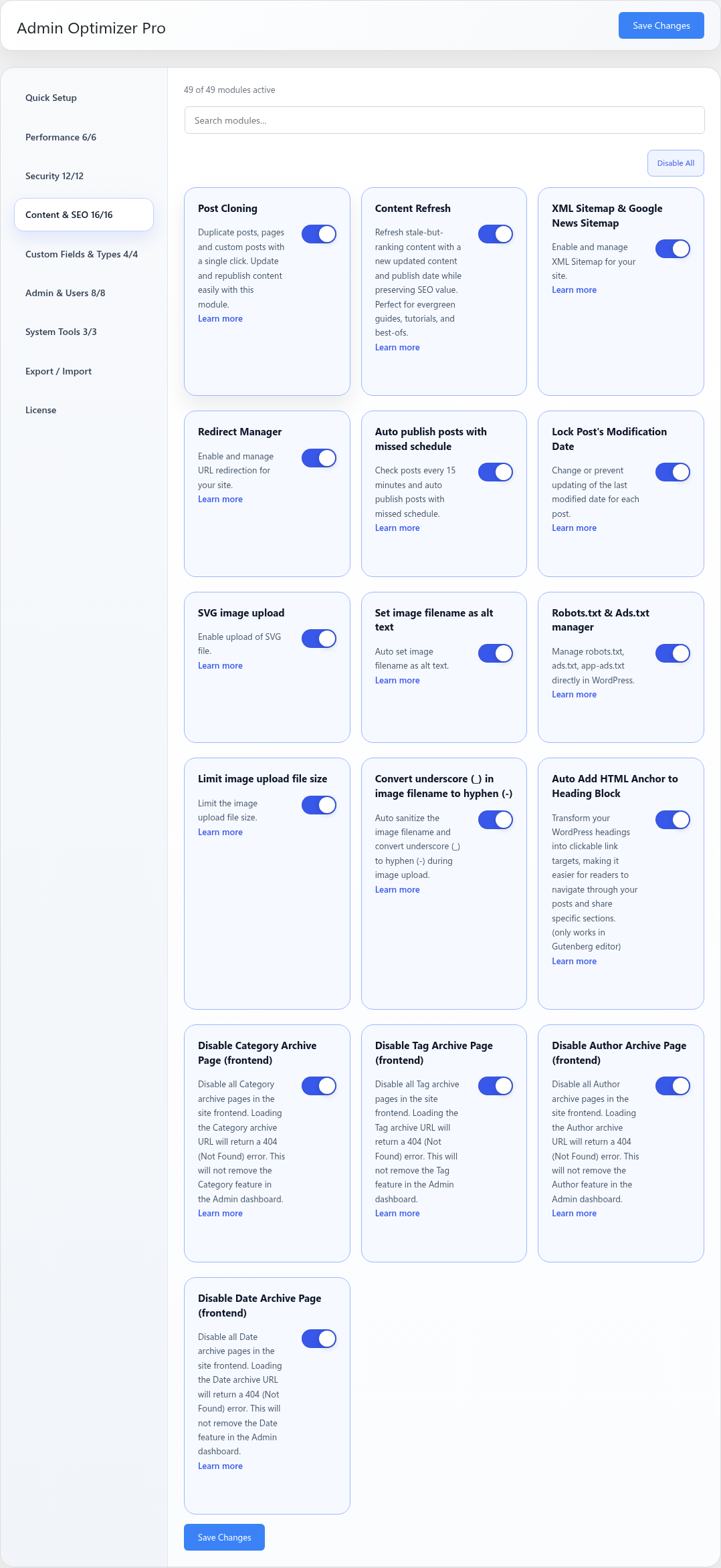
- Go to Admin Optimizer > Content & SEO.
- Toggle the switch for SVG image upload.
What the user should test after setup
Try uploading an SVG file directly to your Media Library. By default, WordPress blocks SVG uploads due to security concerns. With this module active, the upload should succeed, and you should be able to preview the image.
Verify it’s Working
Navigate to Media > Add New Media File. Select a standard .svg file from your computer and upload it. Confirm that the upload finishes successfully without any “Sorry, this file type is not permitted for security reasons” errors, and verify that the SVG image appears in the media grid.
Settings
This module has no dedicated settings beyond the enable toggle.
Notes
While this module automatically sanitizes SVG files during the upload process to strip out potentially malicious or unsafe markup (such as embedded scripts), you should still only upload SVG files from trusted sources as a best security practice.