Overview
Page Ordering adds drag-and-drop ordering for pages and hierarchical content.
How It Works
Admin Optimizer adds ordering controls to supported admin list screens and saves the new menu order.
When to Use It
Use it when you want to quickly arrange page order from the admin list table.
Setup Guide
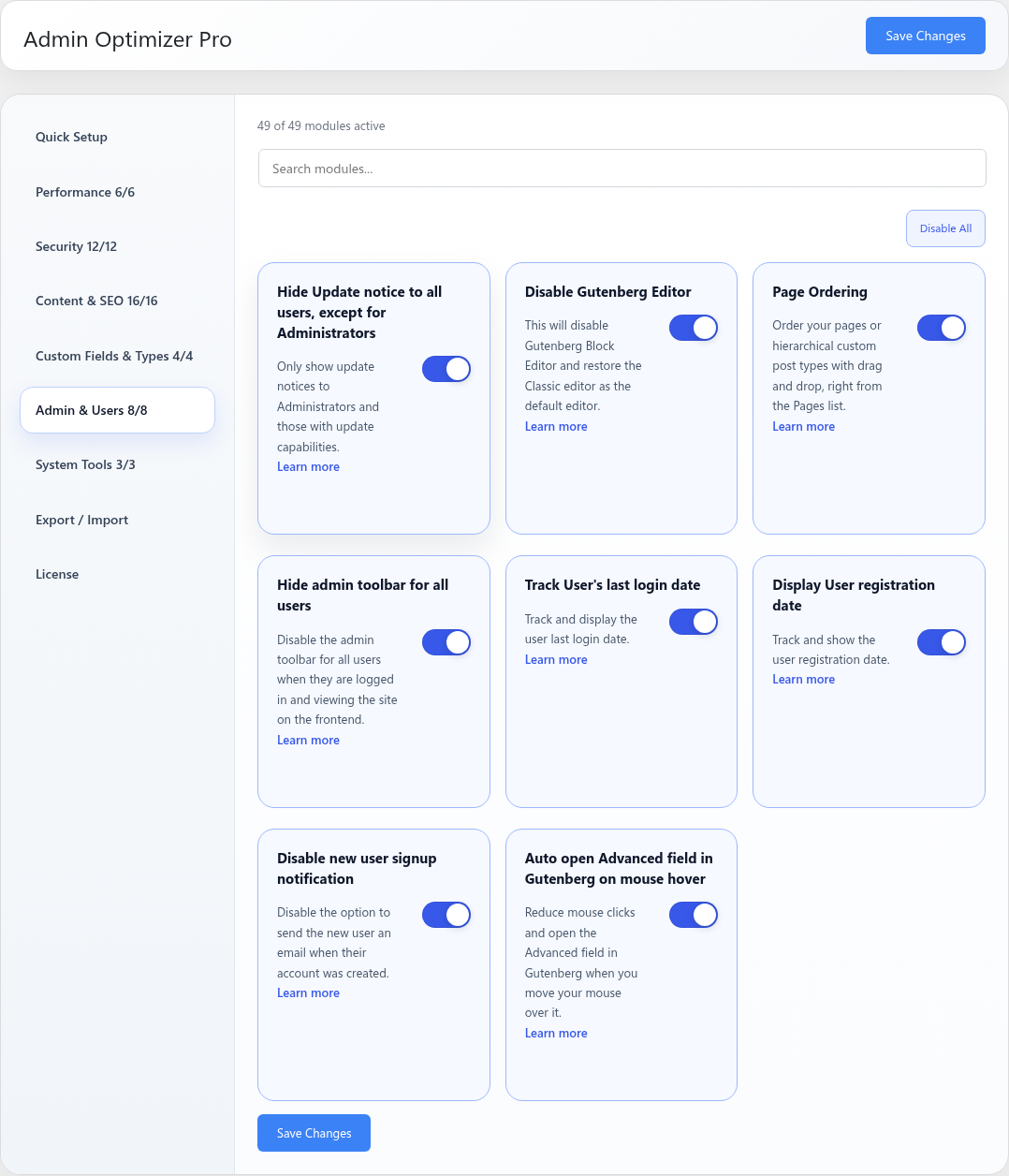
- Go to Admin Optimizer > Admin & Users.
- Toggle the switch for Page Ordering.
How to use Page Ordering
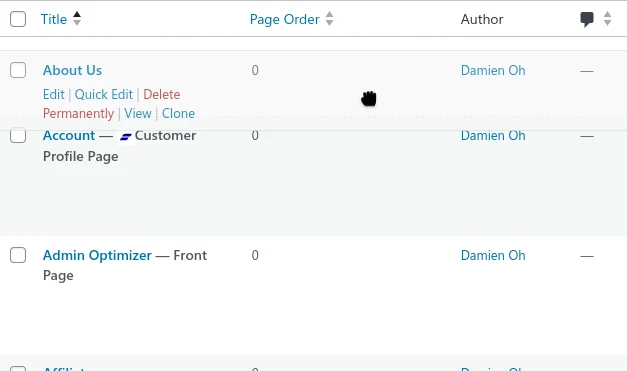
- Navigate to Pages > All Pages (or any other hierarchical custom post type) in your WordPress dashboard.
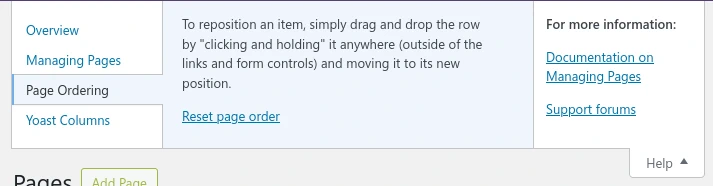
- Click and drag anywhere on a page’s row in the list to move it to your desired position. There is no specific drag handle.
- Drop the page into place. The new menu order is saved automatically in the background.
What the user should test after setup
Go to your Pages list and try dragging a page to a new position. Refresh the page to verify that the new order is saved. If your theme displays pages or menus based on the menu order, check the frontend to ensure the new order is reflected.
Settings
This module has no dedicated settings beyond the enable toggle.
Notes
Ordering applies to content types that support menu order and hierarchical structure.