Overview
SEO Manager adds lightweight SEO controls directly inside Admin Optimizer Pro. It can output SEO titles, meta descriptions, canonical URLs, robots directives, Open Graph tags, X/Twitter card tags, and automatic JSON-LD schema for supported public content.
It also includes an SEO Health dashboard and can use AI Connectors to suggest focus keywords, SEO titles, meta descriptions, and social SEO fields.
How It Works
After you enable the module, SEO Manager adds a SEO Settings metabox to the enabled public post types. The module saves each post’s SEO data, then outputs the matching frontend tags on singular content.
Global settings control supported post types, noindex rules, title and description formats, social image fallbacks, canonical behavior, schema output, and AI suggestions.
When to Use It
Use it when you want built-in SEO metadata and schema controls without installing a separate full SEO plugin.
If another SEO plugin is already active, review the SEO Health conflict warning and avoid letting both tools output titles, descriptions, social tags, or schema for the same content.
How to Enable
Go to Admin Optimizer > Content & SEO and enable SEO Manager.
Setup Guide
- Go to Admin Optimizer > Content & SEO.
- Toggle the switch for SEO Manager.
- Open Admin Optimizer > SEO Manager.
- Review the SEO Health tab first.
- Open the General tab and choose the supported post types.
- Configure title, description, social image, canonical, and AI settings.
- Open the Schema tab and configure the site identity.
- Edit an enabled post or page and complete the SEO Settings metabox.
Recommended default configuration
- Keep Posts and Pages enabled in Supported Post Types.
- Keep Auto-generate Canonical URL enabled.
- Keep Allow Per-post Canonical Override enabled if you manage duplicate or syndicated content.
- Keep Use Featured Image When Social Image Is Empty enabled.
- Add default Facebook/Open Graph and X/Twitter images at 1200×630 px.
- Keep Enable Schema Output enabled.
- Configure Organization/Site Name, Organization Website URL, and Organization Logo.
- Use Default Noindex Rules for low-value archive/system views such as search results, date archives, author archives, or 404 pages when those pages should not appear in search results.
Step-by-step setup example
- Enable the module and open the SEO Manager settings page.
- In General, enable Posts and Pages under Supported Post Types.
- Leave the default title format as
%title% %separator% %site_name%, or adjust it to match your preferred title style. - Leave the default description format as
%excerpt%. - Upload a default Facebook image and default X image.
- Keep automatic canonical URLs enabled.
- In Schema, select the correct Organization Type: Organization, LocalBusiness, or Person.
- Enter the public site or organization name, website URL, and logo.
- Add social profile URLs in the SameAs fields when available.
- Save the settings.
- Edit an important post or page.
- Enter a Focus Keyword, Meta Title, and Meta Description in the SEO Settings metabox.
- Choose a Schema Type or leave it on Auto.
- Update the post.
What the user should test after setup
Open an enabled post or page on the frontend and inspect the page source. Confirm that the expected meta description, canonical URL, Open Graph tags, X/Twitter tags, robots tag when applicable, and JSON-LD schema are present.
Common mistakes or things to verify
- Running another SEO plugin at the same time can create duplicate metadata.
- Selecting a post type under Post Type Search Visibility forces
noindex,nofollowon singular content for that post type. - A per-post noindex setting suppresses schema output for that post.
- Default social images are separate from the default schema image.
- FAQ schema only outputs when FAQ entities are supplied through the
adminoptim_seo_manager_faq_entitiesfilter. - AI suggestions require the AI Connectors module and at least one configured provider.
Verify it’s Working
Use the SEO Health tab to review site-level checks, then open a frontend post and confirm the page source contains the tags you configured.
For a post with normal index settings, look for:
<meta name="description" content="...">
<link rel="canonical" href="...">
<meta property="og:title" content="...">
<meta name="twitter:card" content="summary_large_image">
<script type="application/ld+json">Code language: HTML, XML (xml)
For a noindex post or selected noindex archive, look for:
<meta name="robots" content="noindex,nofollow">Code language: HTML, XML (xml)Settings
SEO Health
The SEO Health tab shows a site-level SEO score, checklist, cached issue summary, and refresh action.
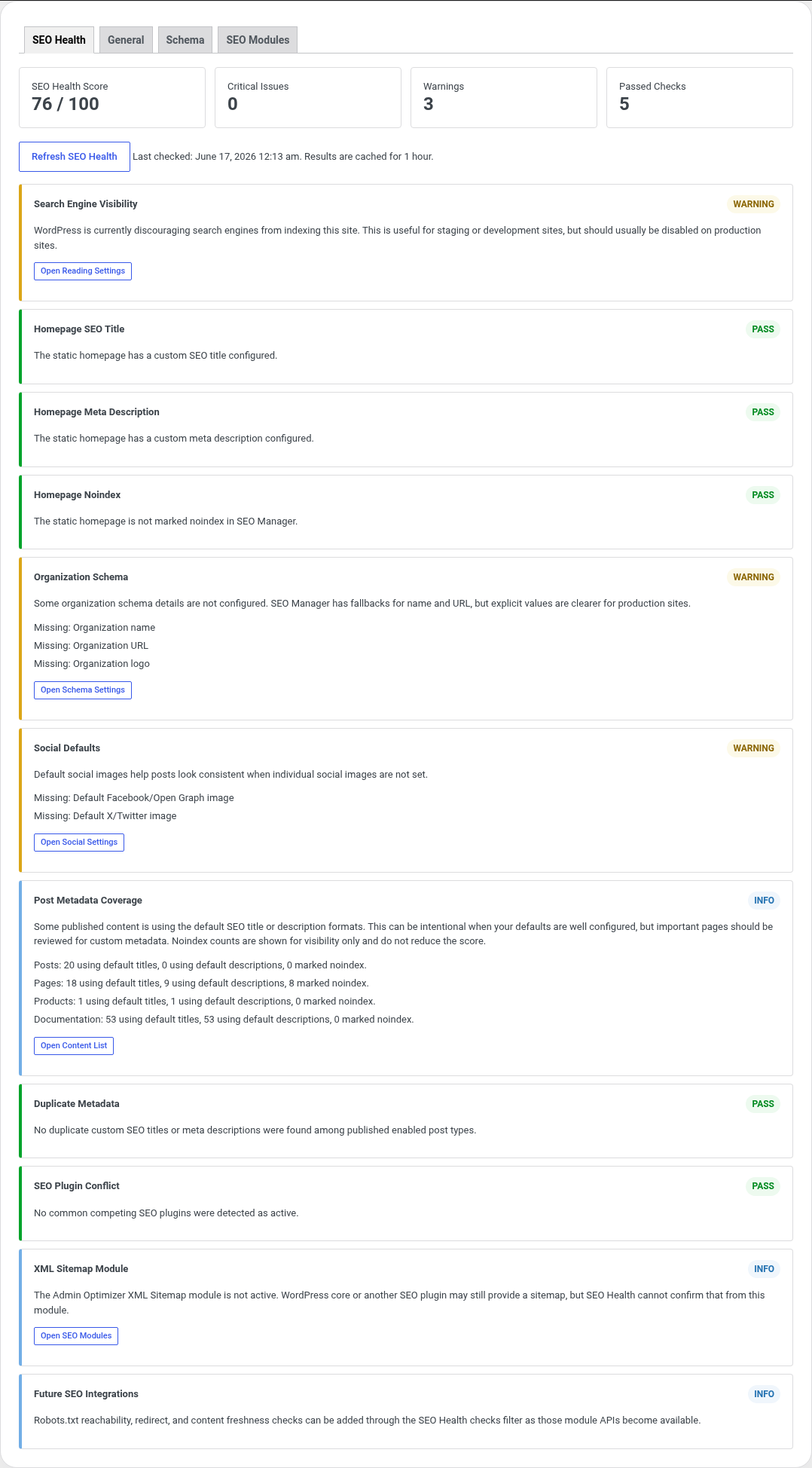
SEO Health checks include:
- Search engine visibility.
- Homepage SEO title.
- Homepage meta description.
- Homepage noindex status.
- Organization schema configuration.
- Default social images.
- Post metadata coverage.
- Duplicate metadata.
- Common SEO plugin conflicts.
- XML Sitemap module status.
Results are cached for one hour. Use Refresh SEO Health to clear the cache and recalculate the dashboard.
General
General settings include:
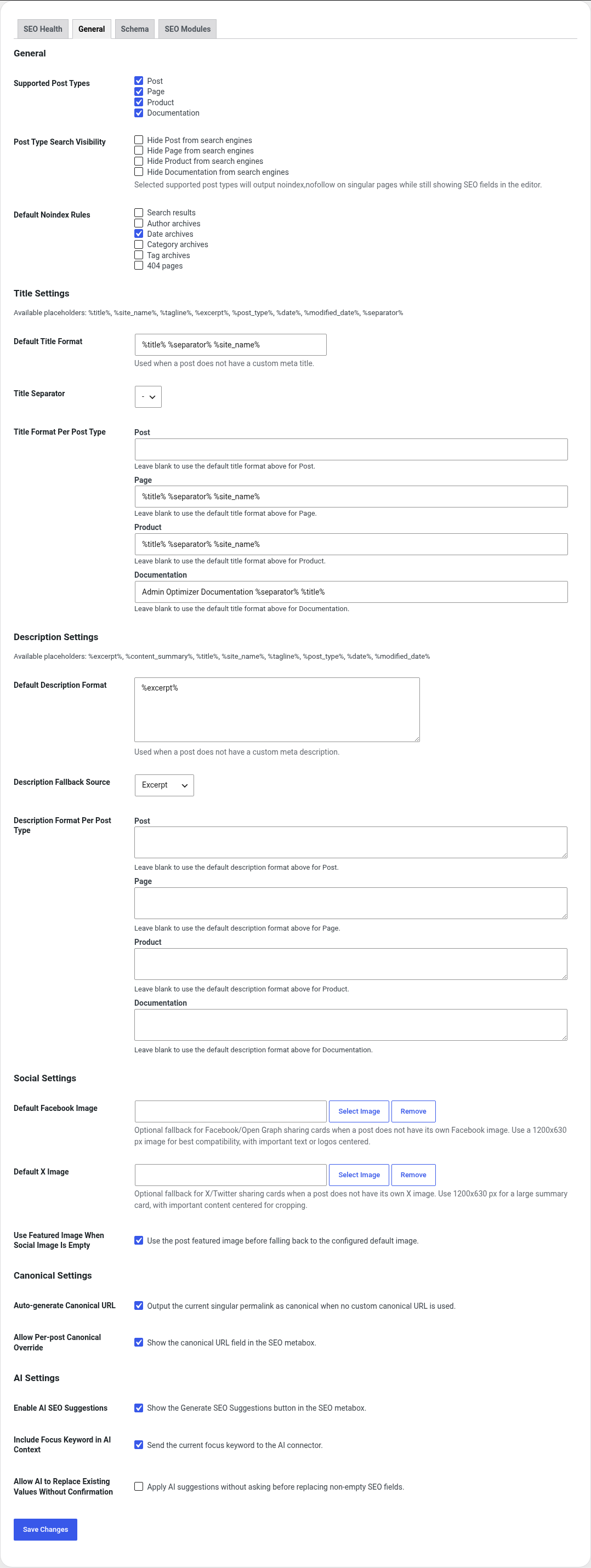
- Supported Post Types: choose where the SEO metabox appears and where frontend SEO output runs.
- Post Type Search Visibility: force
noindex,nofollowfor selected singular post types. - Default Noindex Rules: output noindex tags on search results, author archives, date archives, category archives, tag archives, and 404 pages.
- Default Title Format.
- Title Separator.
- Title Format Per Post Type.
- Default Description Format.
- Description Fallback Source: Excerpt, Content, Site tagline, or Empty.
- Description Format Per Post Type.
- Default Facebook Image.
- Default X Image.
- Use Featured Image When Social Image Is Empty.
- Auto-generate Canonical URL.
- Allow Per-post Canonical Override.
- AI suggestion settings.
Available title placeholders include %title%, %site_name%, %tagline%, %excerpt%, %post_type%, %date%, %modified_date%, and %separator%.
Available description placeholders include %excerpt%, %content_summary%, %title%, %site_name%, %tagline%, %post_type%, %date%, and %modified_date%.
Schema
Schema settings include:
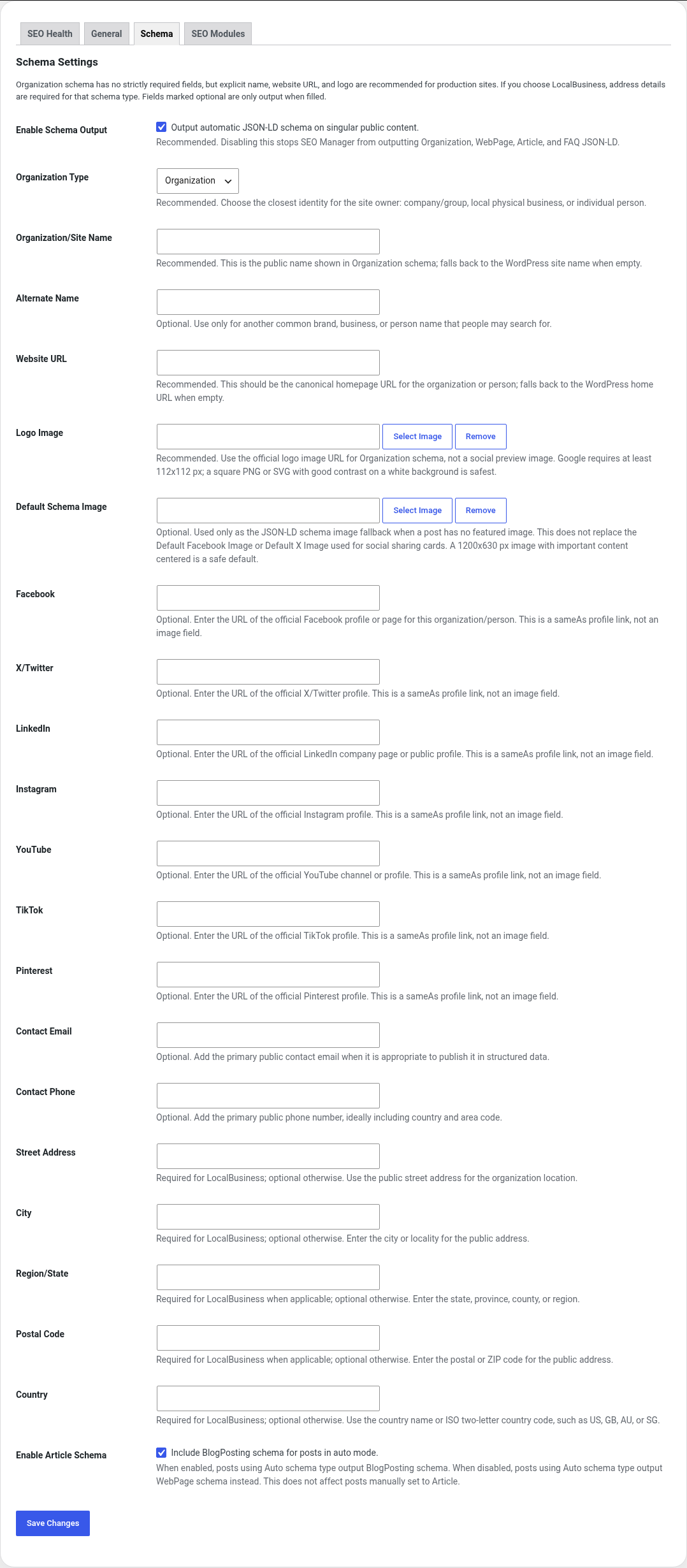
- Enable Schema Output.
- Organization Type: Organization, LocalBusiness, or Person.
- Organization/Site Name.
- Organization Alternate Name.
- Organization Website URL.
- Organization Logo.
- Default Schema Image.
- SameAs social profile URLs for Facebook, X, LinkedIn, Instagram, YouTube, TikTok, and Pinterest.
- Contact Email.
- Contact Phone.
- Address fields.
- Enable Article Schema.
When schema is enabled, SEO Manager outputs automatic JSON-LD on singular public content unless the post is noindexed, schema is disabled for that post, or the current view is not eligible for schema output.
SEO Modules
The SEO Modules tab recommends companion modules that work well with SEO Manager:
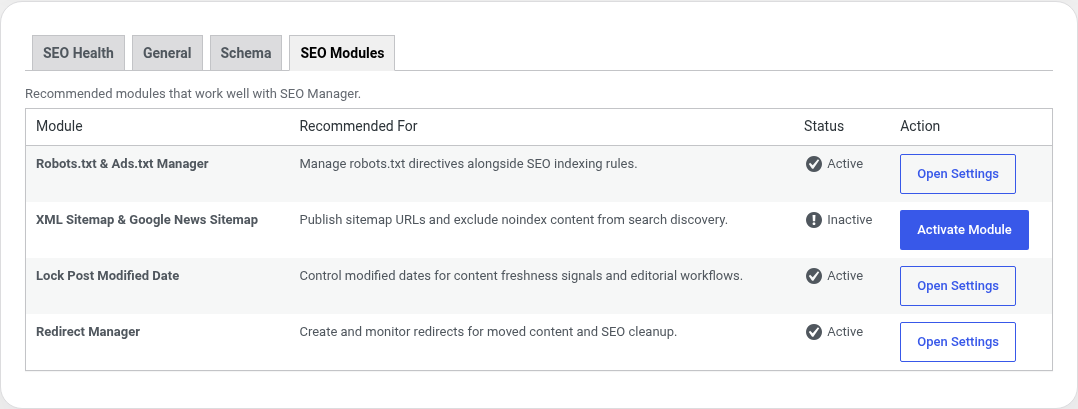
- Robots.txt & Ads.txt Manager.
- XML Sitemap & Google News Sitemap.
- Lock Post Modified Date.
- Redirect Manager.
You can open settings for active companion modules or activate inactive modules from this tab.
Post SEO Settings
The post editor metabox has three tabs: General, Social, and Schema.
General tab
- Focus Keyword.
- Keyword checks for meta title, meta description, URL slug, H1/post title, and keyword occurrences.
- Generate SEO Suggestions when AI Connectors is available.
- Meta Title.
- Meta Description.
- Canonical URL when per-post overrides are enabled.
- Prevent search engines from indexing this page.
Social tab
- Facebook Image.
- X (Twitter) Image.
If a post-specific social image is empty, the module can use the featured image first and then fall back to the configured default social image.
Schema tab
- Schema Type: Auto, Article, WebPage, FAQ, or None.
Auto uses Article schema for posts and WebPage schema for pages and other public post types. FAQ schema requires valid FAQ entities from the module filter. None suppresses schema for the post.
AI Suggestions
When Enable AI Suggestions is active and AI Connectors has at least one provider key configured, the post metabox shows Generate SEO Suggestions.
SEO Manager registers an AI Connectors route named SEO Suggestions. In AI Connectors, you can choose the provider and model used for this task.
AI suggestions should always be reviewed before saving the post.
Frontend Output
SEO Manager can output:
- Meta description.
- Canonical URL.
- Robots noindex/nofollow tag.
- Open Graph title, description, URL, type, and image.
- X/Twitter card, title, description, and image.
- Automatic JSON-LD schema.
- Document title through WordPress title filters.
The module only prints a literal <title> tag when the active theme does not support WordPress title-tag.
Free vs Pro
SEO Manager is a Pro module.
Notes
- Keep one SEO metadata system responsible for frontend output.
- Review important pages manually even when title and description defaults are configured.
- Use SEO Health as a guide, not as a replacement for checking search results, social previews, and page source.