Overview
Lock Post’s Modification Date controls whether WordPress updates the modified date when content is edited.
How It Works
Admin Optimizer adds modified-date controls to editing workflows and applies the saved lock behavior when posts are updated.
When to Use It
Use it when you make minor edits and do not want the visible modified date to change automatically.
Setup Guide
- Go to Admin Optimizer > Content & SEO.
- Toggle the switch for Lock Post’s Modification Date.
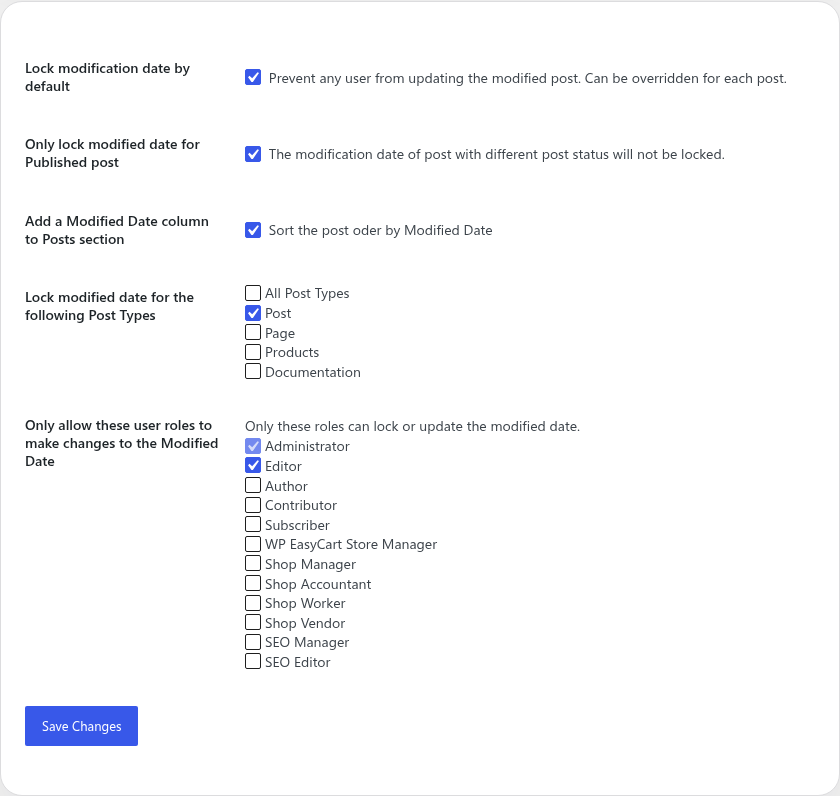
- Configure default locking behavior, whether it applies only to published posts, and whether to add the admin column.
- If using Pro, define which post types support this feature and which user roles are allowed to modify the dates.
Step-by-step setup example
- Enable the module and open the Lock Post’s Modification Date settings.
- Check Lock modification date by default if you rarely want minor edits to affect post dates.
- Check Only lock modified date for Published post so draft timestamps continue to update normally.
- Check Add a Modified Date column to Posts section to easily see modified dates in the list table.
- Save the settings.
What the user should test after setup
Edit a published post, make a minor change, and save it. Verify that the modified date does not change. Check that the new “Modified Date” column is visible in the All Posts screen if enabled.
Common mistakes or things to verify
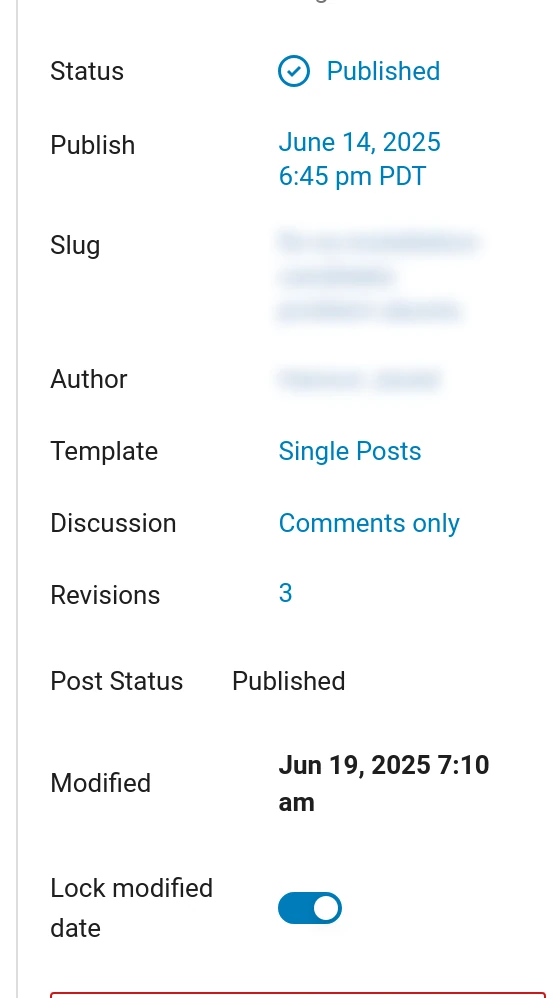
Not realizing that locking the modified date is enabled by default, which can cause confusion when major rewrites don’t update the date. Be sure to uncheck the lock option in the post editor when doing a major update.
Verify it’s Working
Go to Posts > All Posts. Ensure the Modified Date column exists (if enabled). Edit a published post, change a word, update it, and confirm the modified date remained exactly the same as before the edit.
Settings
- Lock modification date by default: Prevent any user from updating the modified date when saving a post. This default setting can be overridden on a per-post basis.
- Only lock modified date for Published post: Ensure the modification date is not locked when editing drafts, pending, or other post statuses.
- Add a Modified Date column to Posts section: Adds a new column in the Posts list table that allows you to sort and view posts by their modified date.
Pro Settings
- Lock modified date for the following Post Types: Choose whether the lock modified date feature applies to all post types, or select specific post types (like pages, custom post types) where this feature should be active.
- Only allow these user roles to make changes to the Modified Date: Restrict which user roles have permission to lock or update the modified date on individual posts. Administrators are always allowed by default.
Free vs Pro
Free includes the default locking behavior, published-only option, and Modified Date column. Pro adds post type targeting and role-based edit permissions.
Notes
Use carefully on sites where modified dates are displayed to visitors or used in SEO workflows.