Overview
Custom Fields Builder is a Pro module for creating custom field groups and displaying saved field values.
How It Works
Administrators create field groups, assign them to supported editing screens, fill in field values, and output those values using the available display options.
When to Use It
Use it when you need structured custom fields for posts, pages, or other supported content without writing custom code.
How to Enable
Go to Admin Optimizer > Custom Fields & Types and enable Custom Fields Builder.
Setup Guide
- Go to Admin Optimizer > Custom Fields & Types.
- Toggle the switch for Custom Fields Builder.
- Create a new field group, define stable field IDs, and set Display Conditions.
- Recommended default configuration
Use descriptive, lowercase field names with underscores. Assign specific Display Conditions to target exact post types or roles.
Step-by-step setup example
- Go to Custom Fields & Types > Custom Fields Builder and click Add New.
- Title the field group.
- Add required fields, giving each a proper label and field ID.
- Configure Display Conditions to show the group on specific post types.
- Save or publish the field group.
- Edit a matching post to confirm fields appear.
Verify it’s Working
Open a post that matches your Display Conditions. The field group should be visible in the editor. Enter data, save the post, and verify the data is saved.
Common mistakes or things to verify
Reusing the same field ID across different fields. Display conditions that are too broad or conflicting.
Creating a Field Group
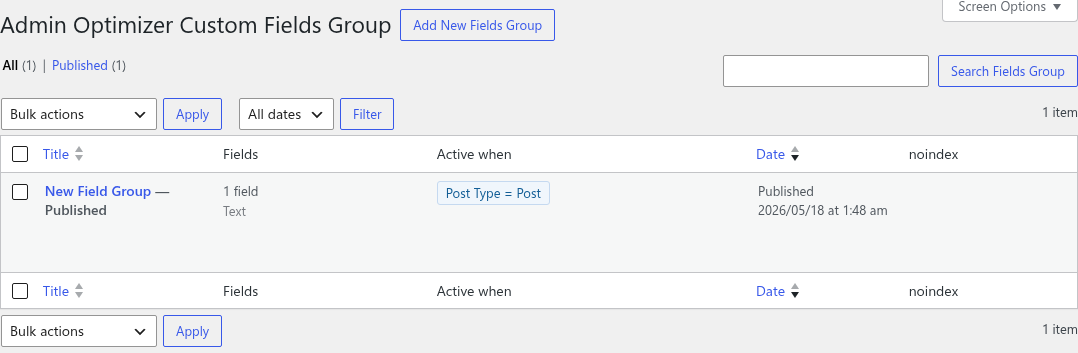
- Go to Custom Fields & Types > Custom Fields Builder.
- Choose Add New.
- Enter a clear field group title, such as Event Details, Product Specs, or Author Profile Fields.
- Add the fields that belong together.
- Configure Display Conditions so the group appears on the correct admin screens.
- Save or publish the field group.
Field groups are stored as private WordPress admin items. They are not public content. Their job is to define which custom fields exist, where those fields appear, and how their values can later be displayed.
Adding Fields
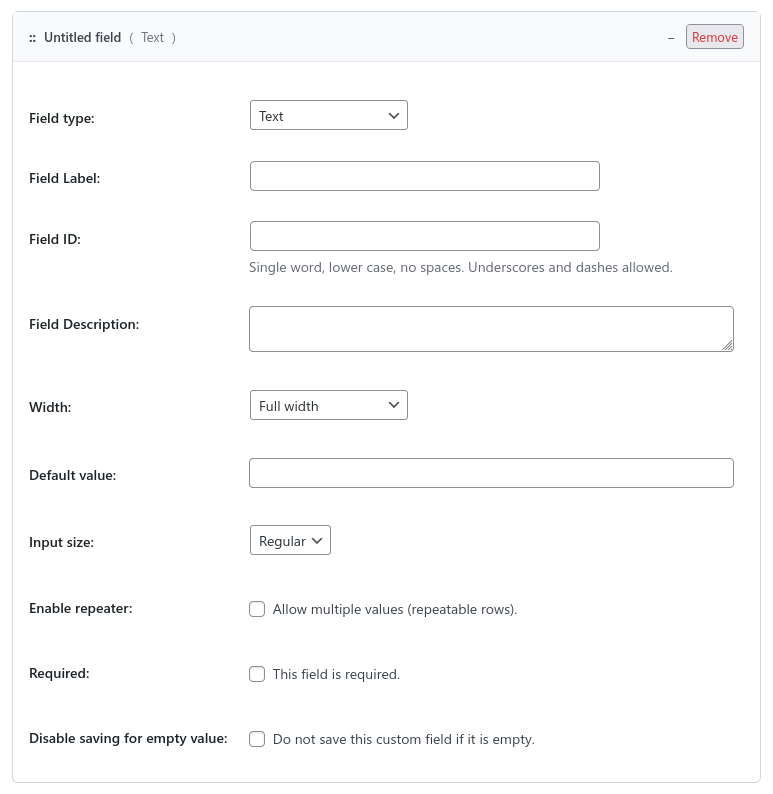
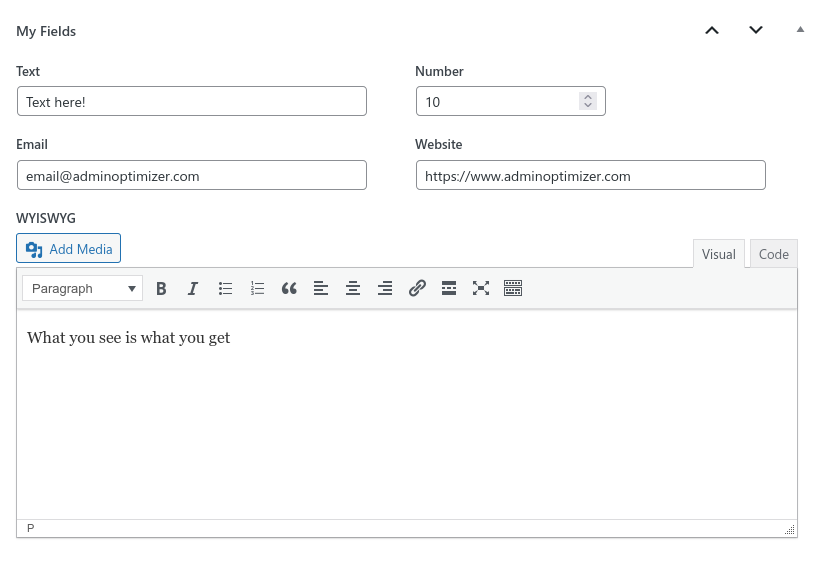
Add fields from the Custom Fields builder area. Each field has a type, label, field name, description, width, and type-specific options.
Supported field types include:
- Text, Number, Range, Email, Phone, URL, and Password.
- Textarea, WYSIWYG, and HTML Message.
- Checkboxes, Radio, Select, and True / False.
- Color Picker, Date Picker, Time Picker, and Datetime Picker.
- File / Media Upload and Image Upload.
- Post, Term, and User relationship fields.
- Group and Tab layout fields.
Choice fields use one option per line:
value|Label
another_value|Another Label
Use Group fields to visually collect related child fields. Use Tab fields to split a larger field group into panels. Group and Tab fields can contain nested fields.
Configuring Field Names
Every value-bearing field should have a stable field name. The field name becomes the meta key used to save and retrieve the value.
Good field names are:
- Lowercase.
- Descriptive.
- Short but clear.
- Stable over time.
- Written with underscores or dashes instead of spaces.
Examples:
event_date
speaker_name
download_file
featured_resource
Avoid reusing the same field name for different meanings. Fields are saved by meta key, so duplicate names in the same context can compete for the same stored value. Renaming a field after editors have entered content can also make existing values harder to find.
Settings
- Custom Fields: add fields to a field group, set each field label, field ID, description, width, defaults, and type-specific options.
- Supported field types include Text, Number, Range, Email, Phone, URL, Password, Textarea, WYSIWYG, HTML Message, Checkboxes, Radio, Select, Yes / No, Color Picker, Date Picker, Time Picker, Datetime Picker, File / Media Upload, Image Upload, Post, Term, User, Group, and Tab.
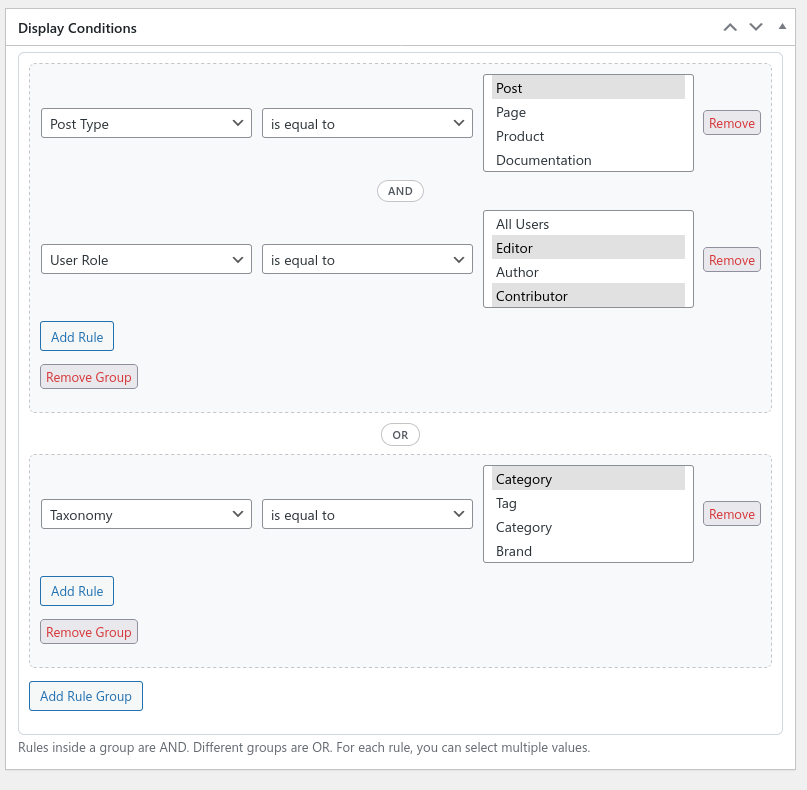
- Display Conditions: choose where the field group appears. Rules inside a group are treated as AND conditions, while separate groups are treated as OR conditions.
- Display Rules and Summary controls are available on the field group edit screen.
Using Display Conditions
Display Conditions decide where a field group is shown. Rules inside one group must all match. Separate rule groups work as alternatives, so the field group appears when any group matches.
Supported condition types include:
- Post Type.
- Post Status.
- Taxonomy.
- User Role.
- Screen.
Supported operators are equals and does not equal. For example, you can show a field group when the Post Type is Event, or show a group for users with a specific role.
Display Conditions control the whole field group. They do not show or hide individual fields based on other field values.
Showing Fields on Posts, Terms, and Users
Custom Fields Builder can render fields on:
- Post and page edit screens.
- Custom post type edit screens.
- Taxonomy add and edit screens.
- User profile screens.
For posts and custom post types, use Post Type and Post Status display conditions. For taxonomy screens, use Taxonomy conditions. For user profile screens, use the Screen condition for the User Profile Form and combine it with User Role conditions when needed.
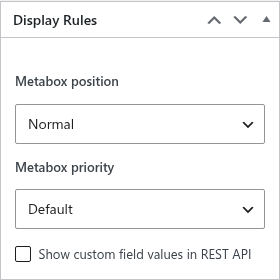
For post edit screens, the field group can also control metabox placement:
- Context: normal, side, or advanced.
- Priority: high, core, default, or low.
Optional REST API exposure is available for post meta when the field group has explicit post type conditions. REST exposure is post-focused; it does not currently register term or user meta.
Saving Values
Values are saved into native WordPress meta tables:
- Posts use post meta.
- Terms use term meta.
- Users use user meta.
Each leaf field normally saves under its field name as an independent meta key. HTML Message fields are display-only and are not saved as values.
Empty submitted values are deleted rather than stored. Group fields can also save a nested array under the group field name when Save nested values as array is enabled. Child fields inside that group may still be saved under their own field names, so decide which value you will treat as the main source before building templates around grouped data.
Most required behavior is handled by the admin UI and browser controls. Required fields are not as deeply enforced server-side as they are in a mature dedicated field framework, so review important fields after saving.
Displaying Values
Use to display one post field on the frontend.
[aocfb_field name="subtitle"]Code language: JSON / JSON with Comments (json)Common attributes:
name: the field name to display.post_id: optional post ID. Defaults to the current post.show_label: show or hide the field label.format:auto,raw,image,link, orlist.template: output template using%label%and%value%.empty: fallback text when the field is empty.class: extra wrapper class.
Example with a label and fallback:
[aocfb_field name="event_date" show_label="true" empty="Date coming soon"]Code language: JSON / JSON with Comments (json)The shortcode display layer formats common field types automatically, including links, images, files, choice labels, relationship links, term names, user display names, repeaters, and grouped values.
Displaying Groups
Use to display multiple fields from one field group.
[aocfb_fields group="123"]Code language: JSON / JSON with Comments (json)The group value can be a field group ID, slug, or title.
Common attributes:
group: field group ID, slug, or title.post_id: optional post ID. Defaults to the current post.layout:list,grid, ortable.show_labels: show or hide field labels.show_empty: show or skip empty fields.class: extra wrapper class.
Example:
[aocfb_fields group="event-details" layout="table" show_labels="true"]Code language: JSON / JSON with Comments (json)Group output respects the field group’s post display matching and renders the group’s leaf fields. HTML Message fields are skipped in group shortcode output.
Using the Dynamic Blocks
Custom Fields Builder includes two dynamic frontend display blocks:
- Custom Field: displays one field.
- Custom Fields: displays a field group.
The blocks use the same renderer as the shortcodes. In the editor, they can preview values from the current post when no explicit post ID is set. On the frontend, an empty post ID resolves to the current post.
The Custom Field block supports field selection, optional post ID, output format, output template, and empty fallback text. The Custom Fields block supports field group selection, optional post ID, layout selection, label visibility, and whether to show empty fields.
Use the blocks when you want to place custom field output in the block editor without writing a shortcode manually.
Free vs Pro
Custom Fields Builder is Pro-only. The free edition shows this module as a disabled Pro-only option.
Important Limitations Compared with ACF
Custom Fields Builder is intended to cover common custom meta workflows inside Admin Optimizer Pro. It is not a full ACF replacement.
Important differences include:
- No field-level conditional logic. Display Conditions target whole field groups, not individual fields.
- No ACF-style Options Pages for site-wide fields.
- No Flexible Content, Clone, Gallery, Google Map, oEmbed, or mature Link field equivalent.
- Repeaters are repeatable rows of a single field type, not full multi-subfield ACF Repeater layouts.
- File and image fields currently store URLs rather than offering ACF-style ID, URL, or array return formats.
- Template helper functions are post-focused. The admin UI can save term and user fields, but there are no matching public term/user helper functions yet.
- Shortcodes and dynamic blocks are currently focused on post field display.
- Required fields and min/max constraints are not as deeply enforced server-side as ACF validation.
- There is no Local JSON, PHP field group registration API, import/export workflow, or mature field group sync system.
- Field references rely on field names rather than stable ACF-style field keys, so duplicate names and later renames need care.
Notes
Plan field names and groups before building large data structures. Changing field structure later can affect existing content. For advanced site-building, complex repeaters, deep developer APIs, or ACF ecosystem compatibility, ACF may still be the better fit.