Overview
Robots.txt & Ads.txt Manager lets you manage crawler and ad-platform text files directly from your WordPress dashboard.
robots.txt: Tells web crawlers and search engines (like Google) which pages or files they are allowed to index and crawl on your site.ads.txt: Authorized Digital Sellers file used by publishers to publicly declare who is authorized to sell their digital ad inventory, helping prevent ad fraud.app-ads.txt: Similar toads.txt, but specifically used by mobile app and connected TV app developers to authorize digital ad sellers.
How It Works
Admin Optimizer stores the configured text and serves it at the appropriate public text-file endpoints.
When to Use It
Use it when you need to edit robots.txt, ads.txt, or app-ads.txt without changing server files directly.
How to Enable
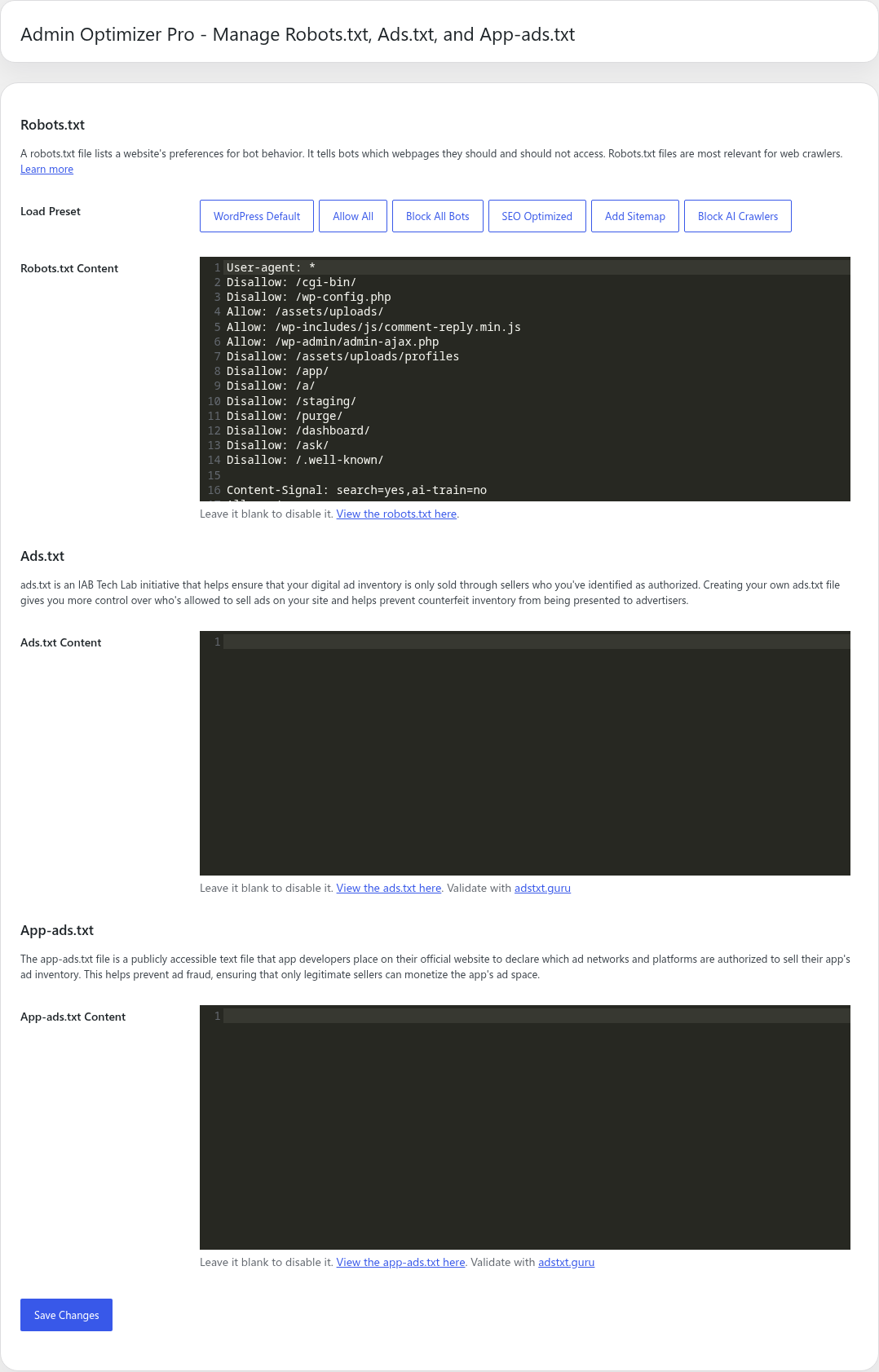
Go to Admin Optimizer > Content & SEO and enable Robots.txt & Ads.txt manager.
Setup Guide
Warning: This module manages virtual files. For it to work, you must ensure that no physical robots.txt, ads.txt, or app-ads.txt files exist in your server’s root directory. Physical files will always override the virtual output created by this module.
- Go to Admin Optimizer > Content & SEO.
- Toggle the switch for Robots.txt & Ads.txt manager.
- Add your required
robots.txtrules or ad platform verification strings to the respective editors. - For
robots.txt, include a link to your XML sitemap and standard WordPress disallow rules. Leave unused files blank.
Step-by-step setup example
- Enable the module and open its settings page.
- In the Robots.txt Content box, add your crawl directives.
- In the Ads.txt Content box, paste your publisher verification lines.
- Save the settings.
What the user should test after setup
Visit yoursite.com/robots.txt and yoursite.com/ads.txt in a browser to confirm the output matches what you saved.
Common mistakes or things to verify
Having physical robots.txt or ads.txt files in your site’s root directory, which will override the virtual files served by this module.
Verify it’s Working
Click the “View” link provided on the settings page for the file you edited to ensure WordPress is serving the managed text correctly. \ If the output does not match what you saved, please refer to the Notes below for common conflicts.*
Settings
- Robots.txt Content: edit the virtual
robots.txtoutput. Leave it blank to disable it. - Ads.txt Content: edit the virtual
ads.txtoutput. Leave it blank to disable it. - App-ads.txt Content: edit the virtual
app-ads.txtoutput. Leave it blank to disable it. - The settings page includes view links for the generated files and validation links for Ads.txt and App-ads.txt.
File Behavior
The module serves managed text at the standard public endpoints: robots.txt, ads.txt, and app-ads.txt. Blank content disables the managed output for that file.
Notes
- Incorrect
robots.txtrules can affect search crawling. Review changes carefully before saving. - This module serves a virtual text file. It will not work if you have a physical
robots.txtorads.txtfile located in your site’s root folder on the server, as the physical file will always take precedence. - Other plugins, particularly SEO plugins like Yoast SEO or Rank Math, may also try to manage these files and can hijack this module’s output. If you experience conflicts, ensure no other plugins are actively managing your
robots.txt.