Overview
Track User Last Login records and displays the last login date for users.
How It Works
Admin Optimizer records a user’s login time and adds last-login information to user management screens.
When to Use It
Use it when administrators need to see recent account activity from the users list.
Setup Guide
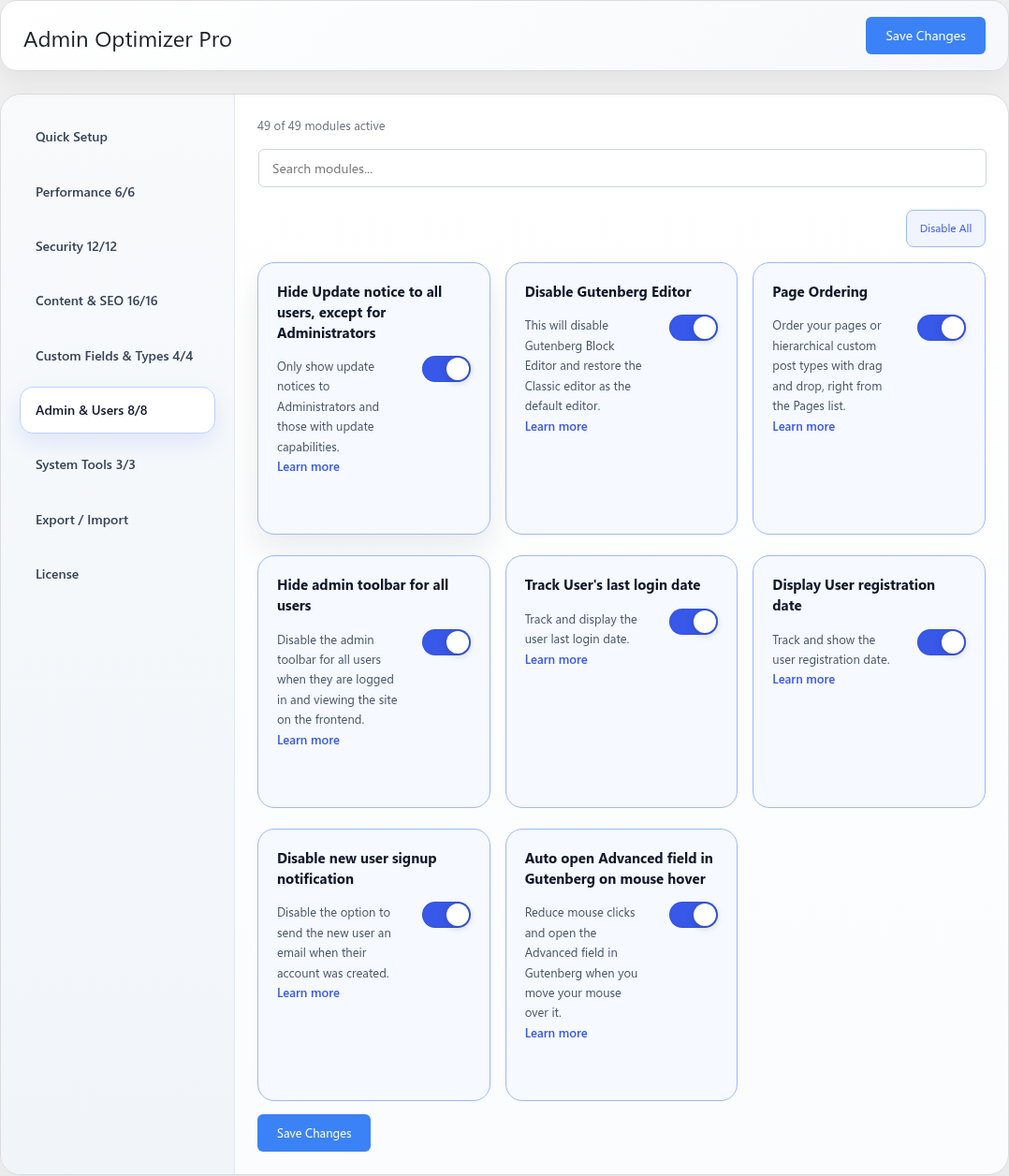
- Go to Admin Optimizer > Admin & Users.
- Toggle the switch for Track User’s last login date.
What the user should test after setup
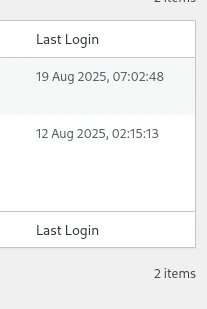
Log out of your WordPress account and log back in. Then, go to the Users list to confirm that your login timestamp was recorded successfully.
Verify it’s Working
Navigate to Users > All Users in the WordPress dashboard. You should see a new column titled “Last Login” (or similar). The column will likely be empty or say “Never” for most users initially. Log out, log back in, and refresh the Users table to confirm that the column now displays your recent login date and time.
Settings
This module has no dedicated settings beyond the enable toggle.
Notes
Tracking starts after the module is enabled; older login events may not be available.