Overview
Custom Taxonomies lets you create and manage WordPress taxonomies.
How It Works
Admin Optimizer saves your taxonomy definitions and registers them with WordPress.
When to Use It
Use it when you need custom ways to group content, such as topics, regions, brands, or difficulty levels.
How to Enable
Go to Admin Optimizer > Custom Fields & Types and enable Custom Taxonomies.
Setup Guide
- Go to Admin Optimizer > Custom Fields & Types.
- Toggle the switch for Custom Taxonomies.
- Set the singular/plural names, slug, and attach it to the correct post types.
- Recommended default configuration
Enable “Show in REST API” for modern editor support. Make it hierarchical for category-style grouping, or non-hierarchical for tag-style grouping.
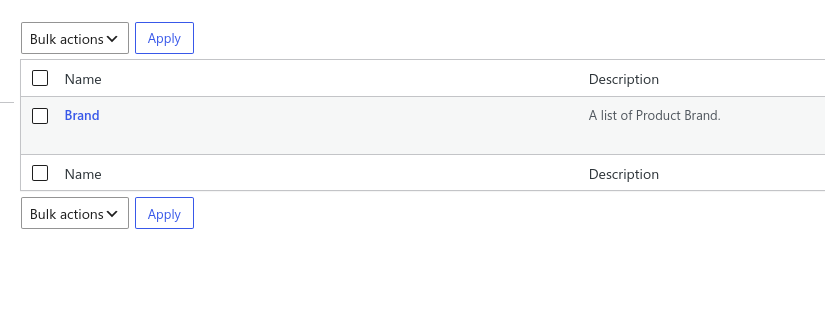
Step-by-step setup example
- Open Custom Fields & Types > Custom Taxonomies and add a new taxonomy.
- Enter names and a unique slug.
- Select the target post types.
- Enable “Show in REST API”.
- Set hierarchical behavior as needed.
- Save the taxonomy.
What the user should test after setup
Refresh permalinks. Create a post of the attached type and check if the taxonomy metabox appears in the editor.
Common mistakes or things to verify
Attaching the taxonomy to a post type that doesn’t exist or forgetting to flush permalinks, leading to broken archive links.
Verify it’s Working
Open the editor for the attached post type. You should see a panel to add/select terms for your new taxonomy.
Settings
The module includes settings for labels, object types, hierarchy, visibility, REST support, rewrite rules, admin columns, query vars, and other taxonomy options.
- Basics: plural name, singular name, slug, object types, public status, and hierarchical behavior.
- Advanced Options: public queries, admin UI, menu visibility, navigation menus, REST API, tag cloud, quick edit, admin columns, rewrite rules, and query var.
- Capabilities: manage terms, edit terms, delete terms, and assign terms.
- Additional Labels: customize the wording used on taxonomy screens, metaboxes, list tables, and block editor links.
Quick Reference
| Setting | Description | Safe to Leave Default? |
|---|---|---|
| Taxonomy Key | The unique identifier for the taxonomy. Must be lowercase with underscores or hyphens. | No |
| Plural Name | The plural name shown in the admin menu (e.g., “Categories”, “Tags”). | No |
| Singular Name | The singular name used in singular contexts (e.g., “Category”, “Tag”). | No |
| Object Types | The post types to which this taxonomy is attached. | No |
| Public | Whether the taxonomy should be publicly queryable and visible in the admin UI. | No |
| Hierarchical | Whether the taxonomy is hierarchical (like categories) or not (like tags). | No |
| Show in REST API | Whether the taxonomy should be accessible via the REST API. | Yes |
| Publicly Queryable | Whether external users can query this taxonomy. | Yes |
| Show UI | Whether to show the taxonomy in the admin UI. | Yes |
| Show in Nav Menus | Whether the taxonomy can be added to navigation menus. | Yes |
| Show Tagcloud | Whether to list the taxonomy in the Tag Cloud Widget. | Yes |
| Show in Quick Edit | Whether to show the taxonomy in the quick/bulk edit panel. | Yes |
| Show Admin Column | Whether to allow automatic creation of taxonomy columns on associated post types table. | Yes |
| Rewrite | Whether to enable pretty permalinks for this taxonomy. | Yes |
| Capabilities | The capabilities to manage terms. | Yes |
Notes
Changing taxonomy slugs after launch can affect archive URLs and internal links.