Overview
Export / Import helps you back up Admin Optimizer settings, move settings between sites, and transfer supported builder content.
How It Works
Admin Optimizer exports selected plugin options to a JSON file. When you import a JSON file, matching Admin Optimizer option groups are sanitized and saved back to WordPress. The screen also links to WordPress XML export and import tools for Form Builder forms. In the Pro edition, it adds XML export and import paths for Custom Fields Builder settings.
When to Use It
Use this module before major configuration changes, when moving settings to a staging or production site, or when you want a backup of your Admin Optimizer setup.
How to Enable
Export / Import is available from the Admin Optimizer settings area. No separate module switch is required.
Setup Guide
- Go to Admin Optimizer.
- Open the Export / Import tab.
- Export the current settings before importing anything.
- Recommended default configuration
Keep a fresh JSON export before testing new settings, importing another site’s settings, or changing multiple modules at once.
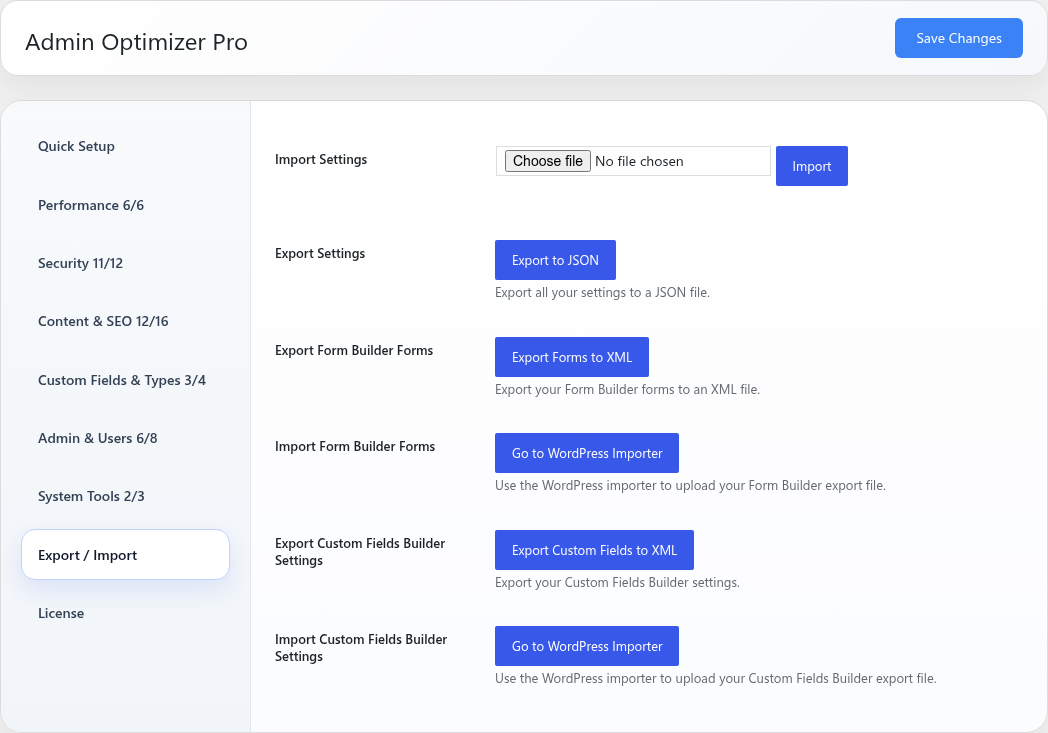
Step-by-step setup example
- Open Admin Optimizer > Export / Import.
- Click Export to JSON to download the current Admin Optimizer settings.
- Store the JSON file somewhere safe.
- To restore or move settings, choose the saved
.jsonfile in Import Settings. - Click Import.
- Review the imported modules and settings after the success message appears.
What the user should test after setup
After importing settings, open the affected Admin Optimizer sections and confirm the expected modules, settings, and values are active.
Common mistakes or things to verify
Importing a JSON file overwrites matching Admin Optimizer settings. Export the current site settings first so you can restore them if needed.
Free vs Pro differences
Free includes Admin Optimizer settings export/import and Form Builder form export/import. Pro adds Custom Fields Builder settings export/import.
Verify it’s Working
Export a JSON file, then open it and confirm it contains Admin Optimizer option names such as adminoptim-modules. After an import, confirm the interface shows a success message and the expected settings are visible in Admin Optimizer.
Settings
- Import Settings: upload a
.jsonfile and import supported Admin Optimizer settings. This overwrites current matching settings. - Export Settings: download supported Admin Optimizer settings as a JSON file.
- Export Form Builder Forms: export Form Builder forms to an XML file through the WordPress exporter.
- Import Form Builder Forms: open the WordPress Importer to upload a Form Builder XML export file.
Pro Settings
- Export Custom Fields Builder Settings: export Custom Fields Builder settings to an XML file through the WordPress exporter.
- Import Custom Fields Builder Settings: open the WordPress Importer to upload a Custom Fields Builder XML export file.
Exported Settings
The JSON export includes saved settings for supported Admin Optimizer option groups when those options contain array data. This includes module status and settings for features such as custom taxonomies, custom login, failed login blocking, 2FA, SMTP, Heartbeat Control, Database Cleaner, custom post types, Post Cloner, robots and ads text management, XML Sitemap, Block Admin Access, and Form Builder.
Import Safety
Only import JSON files from a site you trust. The import process accepts supported Admin Optimizer option groups and saves sanitized values, but the imported settings can still change site behavior immediately.
Notes
Use XML export/import for Form Builder forms instead of the JSON settings export. The JSON file stores settings, while the WordPress XML workflow transfers form content.