Overview
SMTP Mail, shown in the admin as Email & SMTP, sends WordPress email through a configured SMTP provider. WordPress normally sends email through the server’s default mail handler, which can make password resets, form notifications, user emails, and system messages more likely to land in spam or fail authentication checks.
Use this module to connect WordPress to a real mail provider, add additional sending profiles, route different email types through different SMTP accounts, and send email directly from the WordPress admin.
How It Works
Admin Optimizer hooks into WordPress mail sending, configures PHPMailer with your saved SMTP settings, and applies sender details such as Send From, Email From, Reply-To Email, and Force From.
The primary SMTP configuration is used by default. If you add SMTP profiles and routing rules, Admin Optimizer can choose a different profile for specific email types, such as password resets, admin notifications, Form Builder notifications, WooCommerce emails, or messages that match an advanced sender, recipient, or subject rule.
When to Use It
Use it when default WordPress email delivery is unreliable, when a site needs authenticated sender details, or when different types of WordPress email should use different SMTP accounts.
How to Enable
Go to Admin Optimizer > System Tools and enable Email & SMTP.
Setup Guide
- Go to Admin Optimizer > System Tools.
- Toggle the switch for Email & SMTP.
- Open the Email & SMTP settings page.
- Configure the primary SMTP settings first.
- Send a test email and confirm it reaches an inbox you control.
- Add SMTP profiles only if you need multiple sending accounts.
- Configure routing only after each profile has been saved and tested.
Recommended default configuration:
- Choose the correct provider, or use Generic (Custom SMTP) for a custom host.
- Use TLS on port 587 unless your provider specifically requires another combination.
- Enable SMTP authentication in most cases.
- Set Send From and Email From to a sender identity verified with your email provider.
- Enable Auth Key Change Warning so the plugin can warn you if changed WordPress salts make the saved encrypted password unreadable.
Step-by-step setup example
- Enable the module and open Email & SMTP.
- On the SMTP Settings tab, choose your Email Provider, such as Generic, Gmail, Mailgun, Amazon SES, SendGrid, Brevo, or Postmark.
- If you choose Amazon SES, select the AWS Region for the SMTP endpoint.
- Enter the SMTP Server, Port, and Encryption mode.
- Enable SMTP Authentication and enter your Username and Password.
- Set Send From, Email From, and optional Reply-To Email.
- Save the settings.
- Send a test email from the same tab.
What the user should test after setup
Use Send a Test Email on the SMTP Settings tab. Send the test to an inbox you can access, confirm the interface reports success, and then confirm the message arrives outside WordPress.
Also test a real site workflow, such as a password reset or a Form Builder notification, because providers may accept the SMTP connection but reject a specific From address or message pattern.
Common mistakes or things to verify
- The SMTP password may be an app password or provider-specific SMTP credential, not the normal account login password.
- Port and encryption must match. A common setup is TLS with port 587; SSL commonly uses port 465.
- The Email From address should be verified or allowed by the provider.
- If Force From is disabled, Admin Optimizer only replaces the default WordPress sender where possible and respects explicit From headers from other plugins.
- If Force From is enabled, Admin Optimizer forces the configured sender name and address on outgoing mail.
- If WordPress AUTH keys or salts change and password encryption was used, re-enter the SMTP password.
Verify it’s Working
Send a test email, then check the recipient inbox and spam folder. After that, trigger a normal WordPress email and confirm it uses the expected sender identity.
If you use profiles or routing, send one test for each profile and then trigger the email type that should use that route.
Settings Tabs
The Email & SMTP settings page includes these tabs:
- SMTP Settings: Configure the primary SMTP connection and send a test email.
- SMTP Profiles: Save additional SMTP accounts for specialized sending.
- Email Routing: Choose which profile handles each email type and add advanced routing rules.
- Send Email: Compose and send an email from WordPress admin.
Primary SMTP Settings
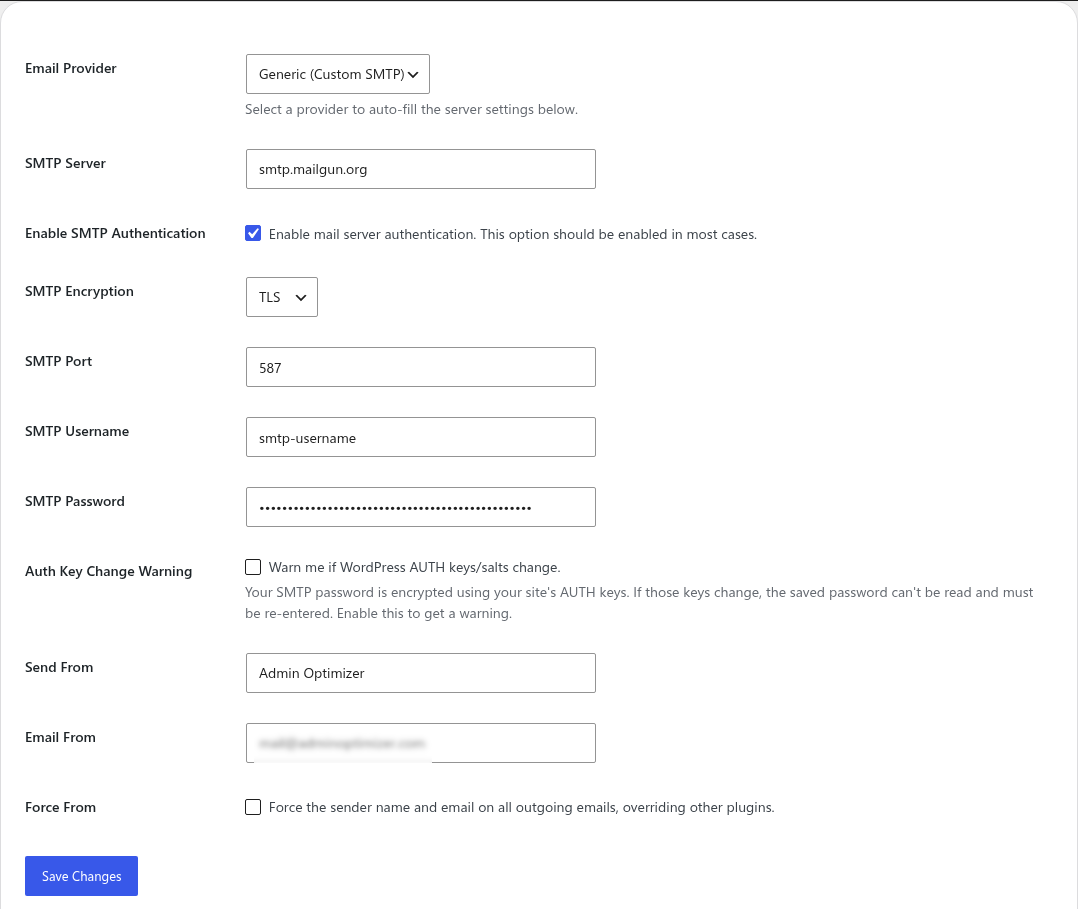
Primary settings control the default connection:
- Email Provider: Generic, Gmail, Mailgun, Amazon SES, SendGrid, Brevo, or Postmark.
- AWS Region for Amazon SES.
- SMTP Server.
- Enable SMTP Authentication.
- SMTP Encryption: None, TLS, or SSL.
- SMTP Port.
- SMTP Username.
- SMTP Password.
- Auth Key Change Warning.
- Send From.
- Email From.
- Reply-To Email.
- Force From.
- Test email sending.
Saved SMTP passwords are encrypted when OpenSSL is available. Leave the password field blank while saving if you want to keep the existing saved password.
Test Email
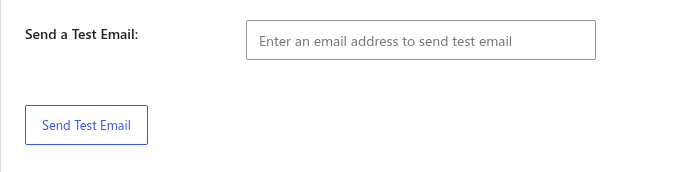
Use the test email field after saving settings. If the test fails, recheck the provider host, port, encryption mode, username, password, Reply-To address, and whether the sender address is verified with the provider.
SMTP Profiles
SMTP profiles let you save additional sending credentials for different providers or accounts. Each profile has its own provider, host, port, encryption, authentication, username, password, sender name, sender email, Reply-To email, internal note, enabled status, and test action.
Use profiles when:
- Password resets should use a transactional provider.
- Form notifications should use a support or sales mailbox.
- Marketing or newsletter-style messages should use a separate provider.
- WooCommerce emails should be isolated from normal admin notices.
After adding a profile, send a profile-specific test email before using it in routing.
Email Routing
Email routing maps email categories to a saved SMTP profile. The available routing categories include:
- Default / Unknown Emails.
- Transactional Emails.
- Marketing Emails.
- Admin Notifications.
- Password Reset Emails.
- New User Emails.
- Form Builder Notifications.
- Form Builder Autoresponders.
- WooCommerce Emails when WooCommerce is active.
The Advanced Rules section can route messages by:
- Sender email contains.
- Recipient email contains.
- Subject contains.
Advanced rules are useful when a plugin sends a recognizable subject line or when mail for a specific recipient domain should use a different profile.
Send Email
The Send Email tab provides a simple admin email composer. It supports To, CC, BCC, Subject, Message, SMTP Profile selection when profiles are available, and Send as HTML.
You can also enable shortcuts:
- Admin Toolbar adds a Quick Email link to the toolbar.
- Dashboard Widget adds a Send Email widget to the WordPress dashboard.
Developer APIs
Email & SMTP exposes helper functions for plugins and custom code that need to open the admin email composer, send an email through the configured SMTP layer, or route a wp_mail() call through a specific profile.
Open the email composer
Use adminoptim_email_compose_url() to build an admin URL for the Send Email tab with optional prefilled fields.
$url = adminoptim_email_compose_url(
	[
		'to'           => '[email protected]',
		'subject'      => 'Follow-up',
		'message'      => 'Thanks for getting in touch.',
		'html'         => false,
		'profile_id'   => 'support',
		'context_type' => 'order',
		'context_id'   => '1234',
		'return_url'   => admin_url( 'edit.php?post_type=shop_order' ),
	]
);Code language: PHP (php)
Use adminoptim_email_compose_link() when you want a ready-to-render admin link or button.
echo adminoptim_email_compose_link(
	[
		'label'   => 'Email Customer',
		'class'   => 'button button-primary',
		'to'      => '[email protected]',
		'subject' => 'Your request',
	]
);Code language: PHP (php)
Supported composer arguments are to, cc, bcc, subject, message, html, profile_id, context_type, context_id, and return_url. adminoptim_email_compose_link() also accepts label, class, and target.
Send email directly
Use adminoptim_email_send() to send an email through the module’s validation, header handling, optional profile routing, and wp_mail().
$result = adminoptim_email_send(
	[
		'to'          => [ '[email protected]' ],
		'cc'          => '[email protected]',
		'subject'     => 'Your account update',
		'message'     => '<p>Your account has been updated.</p>',
		'html'        => true,
		'profile_id'  => 'support',
		'route'       => 'transactional',
		'attachments' => [ WP_CONTENT_DIR . '/uploads/report.pdf' ],
	]
);

if ( is_wp_error( $result ) ) {
	error_log( $result->get_error_message() );
}Code language: PHP (php)
Supported send arguments are to, cc, bcc, subject, message, html, send_as_html, profile_id, route, attachments, headers, context_type, and context_id.
By default, direct sending requires the current user to have manage_options. Use the adminoptim_email_compose_capability filter to change that capability for trusted integrations.
Route existing wp_mail calls
Use adminoptim_smtp_with_profile() to force a specific SMTP profile for a callback that sends mail.
adminoptim_smtp_with_profile(
	'support',
	static function () {
		return wp_mail( '[email protected]', 'Support update', 'Message body' );
	}
);Code language: JavaScript (javascript)
Use adminoptim_smtp_with_route() to tag a callback with a route key, letting the site’s Email Routing settings choose the matching profile.
adminoptim_smtp_with_route(
	'form_notification',
	static function () {
		return wp_mail( '[email protected]', 'New form entry', 'Message body' );
	}
);Code language: JavaScript (javascript)
Built-in route keys are default, transactional, marketing, admin_notification, password_reset, new_user, form_notification, form_autoresponder, and woocommerce.
Helper functions
The module also provides sanitization and lookup helpers for integrations:
adminoptim_email_sanitize_compose_args( $args )adminoptim_email_sanitize_send_args( $args )adminoptim_email_sanitize_email_list( $value )adminoptim_email_sanitize_email_list_text( $value )adminoptim_email_build_headers( $args )adminoptim_email_sanitize_headers( $headers )adminoptim_email_sanitize_attachments( $attachments )adminoptim_email_sanitize_profile_id( $profile_id )adminoptim_email_sanitize_route_key( $route_key )adminoptim_email_profile_exists( $profile_id )
Filters and actions
Available hooks:
adminoptim_email_compose_args: filter composer arguments before the compose URL is built.adminoptim_email_send_args: filter direct-send arguments before validation.adminoptim_email_compose_capability: filter the capability required foradminoptim_email_send().adminoptim_email_send_headers: filter generated headers before delivery.adminoptim_email_before_send: action fired before direct-send delivery.adminoptim_email_send_result: filter the result afterwp_mail()runs.adminoptim_email_after_send: action fired after direct-send delivery.adminoptim_smtp_route_key: provide a route key for a normalwp_mail()call based on its mail arguments.adminoptim_smtp_known_context_route: adjust the route key detected for known WordPress email contexts.adminoptim_smtp_profiles: filter the available SMTP profiles.adminoptim_smtp_resolved_profile: filter the final resolved profile before PHPMailer is configured.
Guard calls with function_exists() when integrating from code that may run while Email & SMTP is disabled.
Notes
Use provider-specific SMTP credentials. Some providers require app passwords, SMTP credentials, API-generated passwords, domain verification, or verified sender addresses.