Overview
Disable Comments closes comments and pingbacks across the entire site and removes comment-related controls from the WordPress interface.
How It Works
When enabled, Admin Optimizer:
- Removes comment and trackback support from every registered post type.
- Reports comments and pings as closed on the frontend.
- Hides existing comments from normal comment output.
- Saves new and updated content with comments and pings closed.
- Removes the Comments admin menu and admin toolbar item.
- Removes the Discussion submenu from Settings.
- Removes the Recent Comments dashboard widget.
The module does not delete existing comments from the database. Disabling the module makes those comments available to WordPress again, subject to each post’s settings and your theme or plugins.
When to Use It
Use this module when the site does not need comments, pingbacks, or trackbacks, such as a business website, portfolio, landing page, or documentation site.
How to Enable
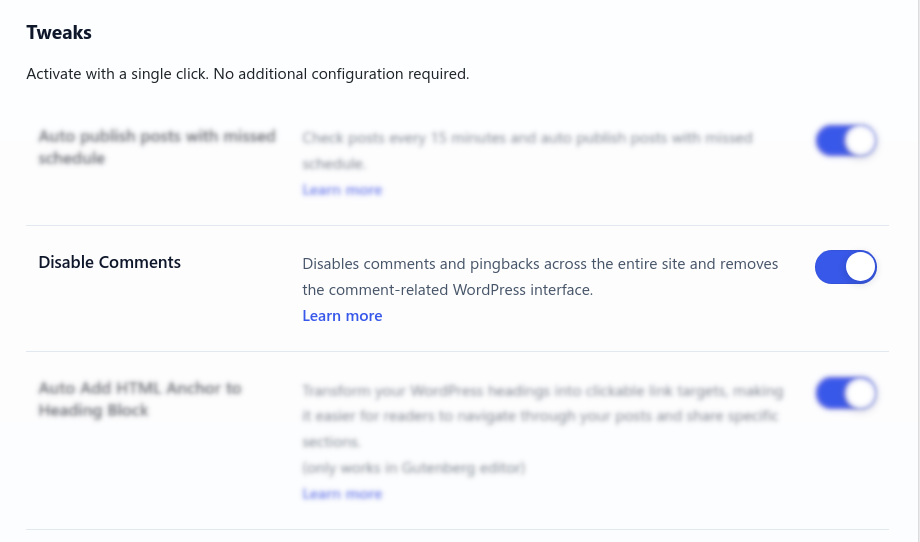
Go to Admin Optimizer > Content & SEO and enable Disable Comments.
Settings
This module has no dedicated settings beyond the enable toggle. It applies to all registered post types and cannot be limited to selected post types.
Verify It’s Working
- Open a post or page in the editor and confirm comment controls are unavailable.
- View published content and confirm the comment form and existing comment list are not displayed.
- Confirm Comments is absent from the WordPress admin menu and toolbar.
- Confirm Settings > Discussion and the Recent Comments dashboard widget are hidden.
Notes
Disable Comments controls WordPress comment and ping behavior, but a plugin with its own discussion system or custom database tables may continue to display its own interface.