Overview
User Access Manager gives administrators one place to manage WordPress roles and capabilities. You can create and clone roles, edit permissions, control access to wp-admin, hide the admin toolbar or selected admin menu items by role, assign multiple roles to a user, and clean up unused capabilities.
Capability changes take effect immediately. Test changes with a separate non-administrator account before applying them broadly.
Setup Guide
- Go to Admin Optimizer > Admin & Users.
- Enable User Access Manager.
- Open Admin Optimizer > User Access Manager.
- Select a role from the Roles tab.
- Review its capabilities and role settings before making changes.
- Click Update Role, then test the role with a separate account.
For a safe first setup, edit an existing low-privilege role or clone a role for testing. Avoid changing the Administrator role until you have confirmed the intended behavior.
Manage Roles
The Roles tab lists default WordPress roles, roles created by User Access Manager, and roles registered by other plugins or themes.
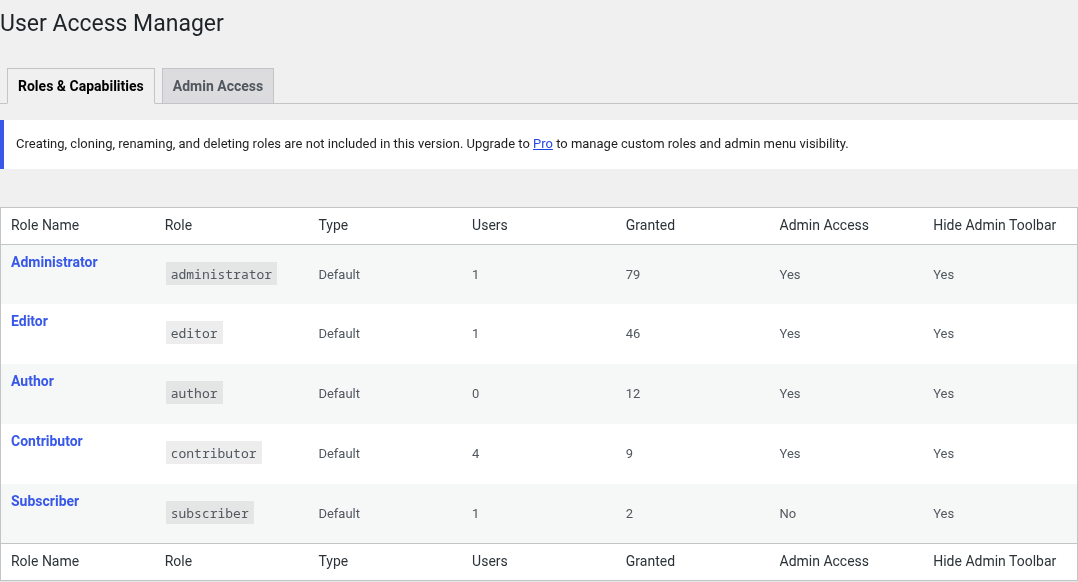
Available actions depend on the role type:
- Add a new role or clone an existing role.
- Edit capabilities for any supported role.
- Rename roles created by User Access Manager.
- Delete non-default roles and reassign their users when required.
- Reset one default WordPress role to its standard capabilities.
Default WordPress roles cannot be renamed or deleted. Third-party roles can be edited, but renaming is disabled because another plugin or theme may depend on the role key.
Edit Capabilities
Open a role and use the Capabilities panel to search, review, grant, or remove capabilities. Capabilities are grouped to make large permission sets easier to review.
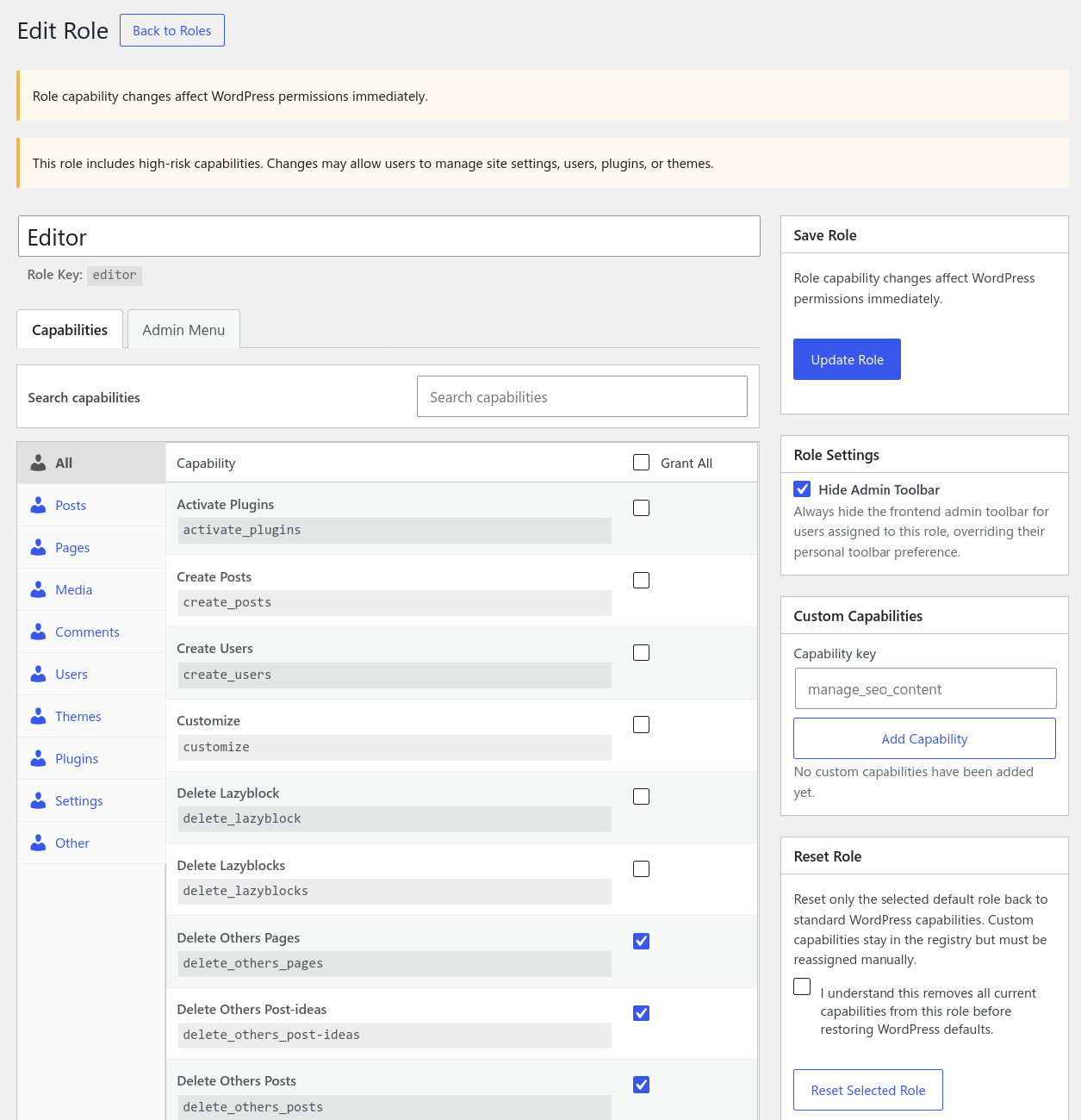
The editor warns when a role has high-risk capabilities that can manage settings, users, plugins, or themes. Removing or granting a capability changes WordPress permissions as soon as you save the role.
You can also register a custom capability key from the role editor. Deleting a custom capability removes it from every registered role, so confirm that no plugin or custom code still uses it.
Admin Menu Access
Open a role, select the Admin Menu panel, and choose which top-level and submenu items remain visible for that role.
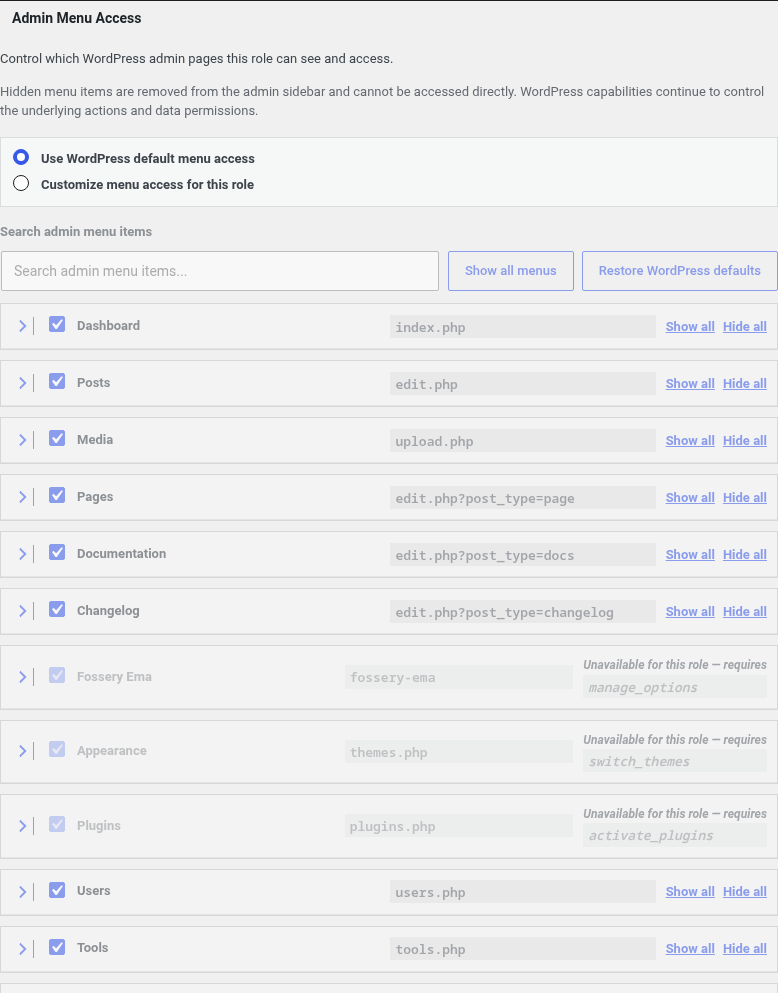
Admin menu settings control both sidebar visibility and access to the matching admin page for that role. WordPress capability checks still apply, so showing an item does not grant the capability required to use it. Protected navigation needed to manage User Access Manager is preserved to reduce lockout risk.
For users with multiple roles, a menu item remains available when at least one assigned role allows it. It is hidden and blocked only when every applicable role explicitly hides it.
Role Settings
Enable Hide Admin Toolbar to always hide the frontend WordPress toolbar for users assigned to the role. This overrides the user’s personal toolbar preference.
For users with multiple roles, the toolbar is hidden if any assigned role has this setting enabled.
Admin Access
Use the Admin Access tab to block selected non-administrator roles from entering wp-admin.
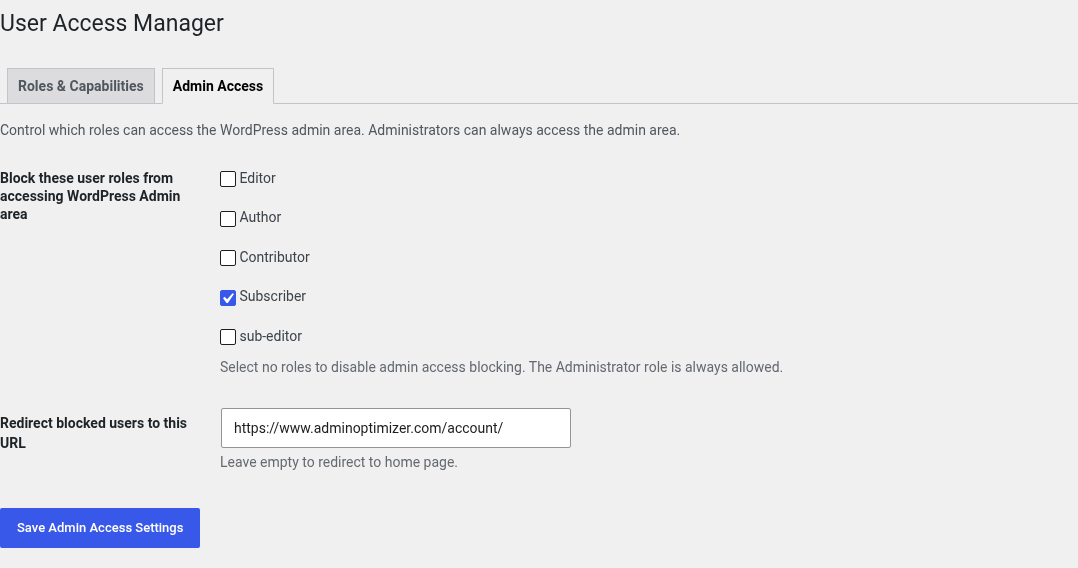
- Select the roles to block.
- Enter a redirect URL, or leave it empty to redirect blocked users to the home page.
- Click Save Admin Access Settings.
Administrators are always allowed. For users with multiple roles, admin access remains available when at least one assigned role is allowed.
Assign Multiple Roles to a User
When User Access Manager is enabled, the standard role control becomes a searchable role checklist on:
- Users > Add New User
- Users > Edit User
- Users > Profile
Select one or more roles and save the user. WordPress combines the capabilities of all assigned roles. User Access Manager prevents changes that would remove your own last administrator-level role or leave the site without an administrator.
The bulk Change role to… action on the Users screen remains WordPress’s standard single-role replacement action.
Unused Capabilities
The Unused Capabilities tab finds non-core capabilities that are assigned to roles but are not registered as custom capabilities in User Access Manager. These may be leftovers from a removed plugin or theme.
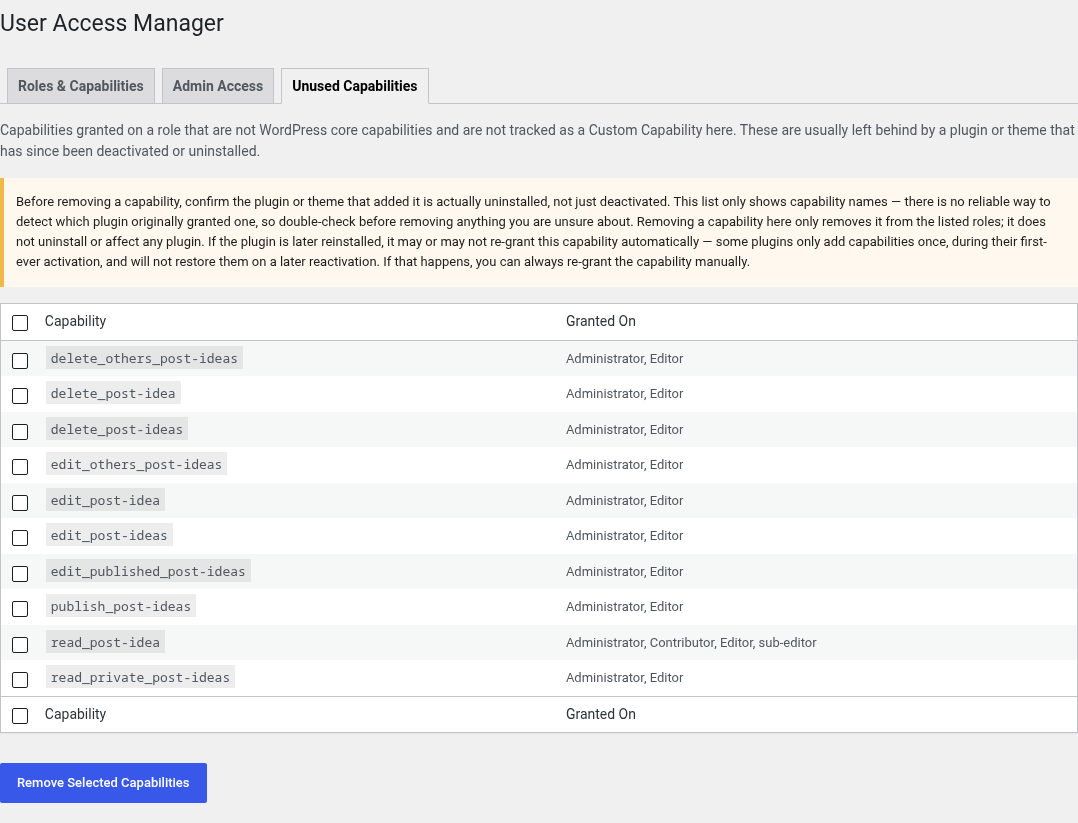
Review each capability before removing it. A currently active plugin or custom integration may still depend on a capability even when User Access Manager cannot identify its source.
Verify It’s Working
- Create or choose a non-administrator test account.
- Assign the role you configured.
- Sign in as that user in a private browser window, or use the separate User Switching module.
- Confirm the expected admin pages, toolbar, and menu items are available.
- Try the actions the role should perform, not only whether their menu links are visible.
- Sign back in as an administrator and correct any unexpected permissions.
Common Mistakes
- Treating a visible menu item as permission to use it. The role still needs the required WordPress capability.
- Granting broad capabilities such as
manage_optionswhen a narrower capability is enough. - Editing or deleting a third-party role without checking which plugin or theme created it.
- Removing an unfamiliar capability only because it appears unused.
- Testing access in the same administrator session instead of using the affected role.
Notes
User Access Manager stores capability assignments in WordPress roles. Admin Optimizer stores its custom capability registry, managed-role metadata, role settings, menu rules, and Admin Access configuration separately.
The Admin Optimizer JSON backup includes both UAM settings and a portable snapshot of WordPress role definitions and capability assignments. It does not include individual users or their role assignments.